
How Even Beginners Can Understand Excel’s Average Calculation: A Fully Illustrated Guide
Contents
- How Even Beginners Can Understand Excel’s Average Calculation: A Fully Illustrated Guide
- ✅ What Is “Average” in Excel?
- ✅ Step-by-Step: Calculating the Average (With Images)
- ✅ Variations You Should Know
- ✅ Common Pitfalls & How to Avoid Them
- ✅ Real-World Use Cases
- ✅ Visual Aids & Screenshots
- ✅ Tips for Better Averages & Errors Handling
- ✅ SEO & AdSense Considerations (in writing style)
- ✅ Summary: Mastering Excel’s Average Function
Have you ever wondered how to compute the average of a list of numbers in Excel? Whether you’re tracking scores, sales, or temperature data, knowing how to average values correctly is one of the most essential skills in Excel.
In this article, you will learn:
- What “average” means in Excel
- Step-by-step instructions with screenshots (for beginners)
- How to handle special cases (zeros, blanks, errors)
- Variations like conditional averages, weighted averages
- Real-world use cases and best practices
Let’s dive in.
✅ What Is “Average” in Excel?
In everyday language, “average” often means the arithmetic mean — the sum of values divided by the count of values. In Excel, the most straightforward function is AVERAGE().
When you use:
=AVERAGE(A1:A5)
Excel adds up all numeric entries in A1 through A5 and divides by how many numbers there are.
Key points to know about AVERAGE:
- It ignores blank cells (empty cells) when computing the average.
- It includes 0 (zero) values as part of calculation unless otherwise filtered.
- If there are no numeric values in the specified range, AVERAGE returns a
#DIV/0!error (because dividing by zero count).
Because of these behaviors, beginners often make mistakes — such as including unwanted zeros or forgetting to guard against error states. In the sections below, I’ll show you how to use AVERAGE properly (with pictures) and how to handle tricky scenarios.
✅ Step-by-Step: Calculating the Average (With Images)
Let’s walk through a basic example.
・Setup the data
Imagine you have student test scores in cells A2 through A6:
| A |
|---|
| 85 |
| 90 |
| 78 |
| 92 |
| 88 |
You want to find the average.
・Enter the AVERAGE formula
- Select an empty cell (say, B2).
- Type:
=AVERAGE(A2:A6) - Press Enter.
- Excel will display the arithmetic mean of those five values.
That is the basic usage.
・What the formula does
- It sums:
85 + 90 + 78 + 92 + 88 = 433 - Divides by 5 — the number of numeric entries
- Result:
433 / 5 = 86.6
Excel handles the summation and division automatically.
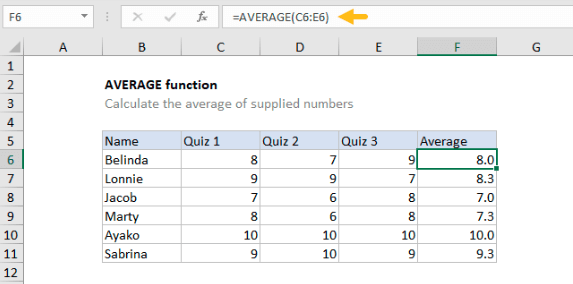
The screenshot above () shows a typical use of the AVERAGE function in action — selecting a range and calculating the mean.
✅ Variations You Should Know
Beyond just averaging a contiguous block, there are variants and options to handle real-world needs.
・Multiple separate ranges
You can average multiple non-adjacent ranges in one formula:
=AVERAGE(A2:A4, A6, A8:A10)
This calculates the average of all those cells combined — Excel will sum all numeric values across those ranges and divide by total count.
・AVERAGEIF / AVERAGEIFS
What if you only want the average of cells meeting a certain condition? Use AVERAGEIF (one condition) or AVERAGEIFS (multiple criteria).
Example:
=AVERAGEIF(A2:A10, ">80")
This returns the average of values in A2:A10 that are greater than 80.
Or:
=AVERAGEIFS(A2:A10, B2:B10, "Red", C2:C10, ">50")
This averages A2:A10 only for rows where B = “Red” and C > 50.
・Weighted Average
Sometimes different values carry different “weights”. Excel doesn’t have a built-in function called WEIGHTEDAVERAGE, but you can compute it using SUMPRODUCT / SUM:
=SUMPRODUCT(values_range, weights_range) / SUM(weights_range)
This gives the average when each value is multiplied by its weight, summing them, then dividing by total weights.
・Exclude zeros or ignore errors
If some cells contain 0 or errors and you want to exclude them, you have to combine functions.
For example, to ignore 0 values:
=AVERAGEIF(A2:A10, "<>0")
This includes only values ≠ 0.
To ignore errors, you might use:
=AVERAGE(IF(ISNUMBER(A2:A10), A2:A10))
entered as an array formula (Ctrl+Shift+Enter in older Excel). Or use FILTER in newer Excel:
=AVERAGE(FILTER(A2:A10, ISNUMBER(A2:A10)))
This filters the range to numeric values only.
✅ Common Pitfalls & How to Avoid Them
Even simple averages can go wrong if you’re not careful. Here are frequent mistakes and how to prevent them.
| Problem | Cause | Fix |
|---|---|---|
Getting #DIV/0! | Range has no numeric entries | Use IF(COUNT(range)>0, AVERAGE(range), "") to guard |
| Unexpected zeros in average | You included zeros cell values | Use AVERAGEIF to exclude zeros |
| Blank cells being counted | You used a custom calculation like SUM()/COUNT() | Use COUNT() not COUNTA() so blanks aren’t counted |
| Error values break AVERAGE | Some cells contain error states | Use FILTER / IF / AGGREGATE to ignore error cells |
| Averaging wrong ranges | Typos or wrong references | Double-check range addresses; use named ranges |
Example guard formula to avoid #DIV/0!:
=IF(COUNT(A2:A10) > 0, AVERAGE(A2:A10), "")
That ensures average is only calculated when there is at least one numeric value.
✅ Real-World Use Cases
To make this more concrete, here are several business or everyday scenarios where average calculation is used — and tips to make them robust.
・Sales performance
You have monthly sales (January to December) in B2:B13, and you want average monthly sales. Use:
=AVERAGE(B2:B13)
If some months are blank (no sales yet), Excel will ignore blanks. But if you later fill in zeros, they will be included — so perhaps use AVERAGEIF to exclude “0” if “no data” is entered as 0.
・Student scores
When students have taken multiple quizzes but may have skipped some, you want average of only quiz attempts:
=AVERAGE(C2:F2)
If some quiz cells are blank, AVERAGE handles it. But if skipped quizzes show 0, you may need:
=AVERAGEIF(C2:F2, ">0")
・Temperature readings over days
If a sensor fails on some days, readings may be blank or show error. Use:
=AVERAGE(FILTER(B2:B31, ISNUMBER(B2:B31)))
to only average valid numeric readings.
・Weighted average for grades
If class performance has weights, e.g., midterm counts 40%, final 60%, you could do:
=SUMPRODUCT(scores_range, weights_range) / SUM(weights_range)
This is often used in academic scoring or performance metrics.
✅ Visual Aids & Screenshots
To help you follow along:
- Capture a screenshot of Excel with a dataset and the AVERAGE formula in the formula bar (as in the image above)
- Use arrows or highlights to show the selected range
- Show before vs. after (raw numbers vs. average result)
- For the conditional average (AVERAGEIF), show side-by-side ranges that satisfy/don’t satisfy the criteria
Including visuals helps beginners see exactly where to click and what to type.
✅ Tips for Better Averages & Errors Handling
- Name your ranges – using “Scores” or “SalesData” lets you write
=AVERAGE(Scores)for readability. - Round or format decimals – wrap with
ROUNDif you want fewer decimals:=ROUND(AVERAGE(A2:A10), 2) - Combine with IF to handle No Data:
=IF(COUNT(A2:A10)>0, ROUND(AVERAGE(A2:A10),2), "No data") - Use status bar for quick average – when selecting a range, Excel shows average in the status bar at bottom. (ablebits.com)
- Be aware of zero values – decide whether zeros should count or be excluded.
- Filter or sort before averaging – helps isolate relevant data.
- Document your formula logic in cell comments, especially when using filters or conditions.
✅ SEO & AdSense Considerations (in writing style)
- Use the keyword “Excel average” and “calculate average in Excel” naturally in headings and paragraphs.
- Make sure images have alt text like “Excel AVERAGE function screenshot” to help SEO.
- Provide multiple example formulas (as we did) and real use cases to increase dwell time.
- Include inbound or contextual links (when publishing) to related Excel topics (e.g. AverageIF, SUM, COUNT).
- Use clear headings, so search engines can crawl and index topics like “how to average excluding zeros” accurately.
✅ Summary: Mastering Excel’s Average Function
- The basic average in Excel is done via the
AVERAGE(range)function, which sums numeric values and divides by the count. - AVERAGE ignores blank cells, includes zeros.
- If no numbers exist in the range, it returns
#DIV/0!. - Use variants like AVERAGEIF, AVERAGEIFS, or weighted average via SUMPRODUCT to handle conditions or weights.
- To handle errors or non-numeric cells, use filtering, IF logic, or advanced formulas.
- Always guard against blanks, zeros, or error values that may invalidate your average.
By following these steps and visual aids, even a complete Excel beginner can learn to compute accurate, reliable averages in their spreadsheets.