
How to Use ElseIf in IF Statements to Do Nothing in Excel VBA
Contents
- How to Use ElseIf in IF Statements to Do Nothing in Excel VBA
- ✅ Understanding How IF…ElseIf Works in VBA
- ✅ Why “Do Nothing” Logic Is Useful
- ✅ The Simplest “Do Nothing” ElseIf Pattern
- ✅ Adding Clarity with a “No Action” Comment
- ✅ Nested IF Logic with “Do Nothing” Sections
- ✅ Inverting the Logic for Cleaner “Do Nothing” Code
- ✅ Using ElseIf to Skip Specific Cases
- ✅ Combining Multiple ElseIf Conditions That Do Nothing
- ✅ Using Variables to Simplify ElseIf Logic
- ✅ When to Use “Do Nothing” vs. “Exit Sub”
- ✅ Skipping with ElseIf in Loops
- ✅ Simulating “Continue” Inside ElseIf Logic
- ✅ Using Comments and Logical Grouping
- ✅ Nested ElseIf with Multi-Condition “Do Nothing”
- ✅ Avoiding Redundant ElseIf Branches
- ✅ Combining “Do Nothing” ElseIf with Logical Inversion
- ✅ Handling Errors Gracefully Using ElseIf
- ✅ Using ElseIf for Controlled User Input Validation
- ✅ Practical Business Example — Sales Processing Workflow
- ✅ Professional Tips for Readable “Do Nothing” Logic
- ✅ Avoiding Common Mistakes
- ✅ Performance Optimization for Skip Logic
- ✅ Full Example: Data Review Macro with ElseIf “Do Nothing” Logic
- ✅ Summary: Using ElseIf for Intentional “No-Action” Logic
In real-world Excel automation, not every condition leads to an action. Sometimes, your macro must respond to specific situations and simply do nothing in others. For example, if a certain value is missing, an entry is invalid, or a flag is “Off,” you may want your code to move on silently without interrupting execution.
In Excel VBA, the If...ElseIf...Else statement is the foundation of decision-making logic. It controls what happens when conditions are met or not met. But unlike many programming languages, VBA doesn’t have a built-in continue or pass keyword to represent “no action.” Instead, you can use the structure of your IF and ElseIf statements to intentionally skip actions or leave sections blank.
This article explores how to use ElseIf statements to do nothing — intentionally — while keeping your code readable, stable, and efficient. You’ll learn not only the syntax but also the professional approach to structuring “no-action” logic that keeps your automation reliable and easy to maintain.
✅ Understanding How IF…ElseIf Works in VBA
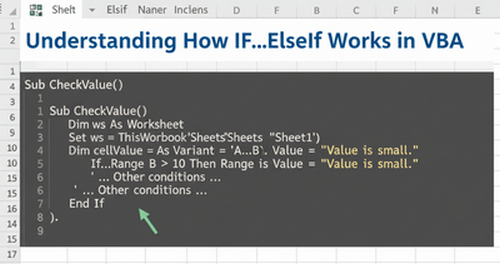
The If...ElseIf...Else structure executes different code blocks depending on which condition evaluates as True.
Here’s the basic structure:
If condition1 Then
' Code block 1
ElseIf condition2 Then
' Code block 2
Else
' Code block 3
End If
VBA evaluates each condition from top to bottom:
- When it finds a
Truecondition, it runs that block and skips the rest. - If none are
True, it executes the finalElse(if present).
✅ You can leave a condition’s block empty if you want no action — this is how we “do nothing” in a controlled way.
✅ Why “Do Nothing” Logic Is Useful
There are many situations in automation where you may want VBA to skip a condition deliberately:
- A cell is blank but not critical.
- An optional field doesn’t need processing.
- An invalid entry should be ignored without triggering errors.
- A particular flag or status should not lead to any change.
By combining ElseIf with “no-action” branches, you can design flexible macros that make decisions silently — ideal for clean, professional automation.
✅ The Simplest “Do Nothing” ElseIf Pattern
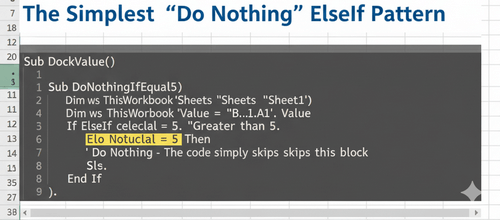
・Basic Example
If Range("A1").Value = "Yes" Then
MsgBox "Action performed"
ElseIf Range("A1").Value = "No" Then
' Do nothing
Else
MsgBox "Unexpected value"
End If
✅ In this example:
- If the cell contains “Yes,” the macro acts.
- If it contains “No,” nothing happens — the code intentionally does nothing.
- Any other value triggers the
Elseblock.
✅ Adding Clarity with a “No Action” Comment
It’s good practice to make your intent explicit when leaving a block empty.
ElseIf Range("A1").Value = "No" Then
' No action required
✅ This simple comment tells future readers that the absence of code is intentional, not a mistake.
✅ Nested IF Logic with “Do Nothing” Sections
You can combine nested IFs with ElseIf branches that purposely skip actions.
If Range("A1").Value = "Pending" Then
MsgBox "Waiting for approval"
ElseIf Range("A1").Value = "Rejected" Then
' Do nothing
ElseIf Range("A1").Value = "Approved" Then
MsgBox "Process started"
End If
✅ When status = “Rejected,” the macro performs no actions but continues execution cleanly.
How to Use ElseIf in IF Statements to Do Nothing in Excel VBA
✅ Inverting the Logic for Cleaner “Do Nothing” Code
Rather than filling your code with empty ElseIfs, you can structure logic so that the active case appears first.
If Range("A1").Value = "Approved" Then
MsgBox "Proceeding with operation"
End If
✅ This is logically equivalent to “do nothing unless approved.”
It’s one of the most readable ways to express “no action” logic.
✅ Using ElseIf to Skip Specific Cases
Sometimes you only want to exclude one case and process the rest.
If Range("A1").Value = "Error" Then
' Do nothing
ElseIf Range("A1").Value = "Active" Then
MsgBox "Running process..."
Else
MsgBox "Completed"
End If
✅ The “Error” case is silently ignored — a useful approach when handling imported data with occasional invalid entries.
✅ Combining Multiple ElseIf Conditions That Do Nothing
You can chain several ElseIf branches that all intentionally do nothing.
If Range("A1").Value = "A" Then
MsgBox "Group A processed"
ElseIf Range("A1").Value = "B" Then
' Do nothing
ElseIf Range("A1").Value = "C" Then
' Do nothing
Else
MsgBox "Other group detected"
End If
✅ Only Group A triggers a process; others are explicitly skipped.
How to Use IF Statements in Excel VBA to Run the Next Process When a Cell Is Blank
✅ Using Variables to Simplify ElseIf Logic
For readability and flexibility, assign the cell value to a variable.
Dim status As String
status = Range("A1").Value
If status = "Active" Then
MsgBox "Processing"
ElseIf status = "Inactive" Then
' Do nothing
Else
MsgBox "Unknown status"
End If
✅ Using variables shortens conditions and makes your logic clearer.
✅ When to Use “Do Nothing” vs. “Exit Sub”
Sometimes “do nothing” means “stop right here and don’t continue.”
You can combine ElseIf with Exit Sub for explicit termination.
If Range("A1").Value = "Stop" Then
MsgBox "Halting macro"
Exit Sub
ElseIf Range("A1").Value = "Skip" Then
' Do nothing and continue
Else
MsgBox "Processing continues"
End If
✅ Exit Sub stops execution; a blank ElseIf simply skips without stopping.
✅ Skipping with ElseIf in Loops
Loops are where “do nothing” logic becomes most valuable.
You can use ElseIf inside a For loop to skip unwanted records.
・Example: Processing Non-Blank Cells
Sub ProcessData()
Dim i As Long
For i = 2 To 50
If IsEmpty(Cells(i, 1).Value) Then
' Do nothing
ElseIf Cells(i, 1).Value = "N/A" Then
' Do nothing
Else
Cells(i, 2).Value = UCase(Cells(i, 1).Value)
End If
Next i
End Sub
✅ Both blank and “N/A” rows are ignored.
Only valid data is processed, keeping results accurate.
✅ Simulating “Continue” Inside ElseIf Logic
VBA doesn’t support a true Continue keyword, but you can mimic its behavior by structuring your code to bypass actions.
For i = 2 To 100
If Cells(i, 1).Value = "" Then
' Do nothing (acts like continue)
ElseIf Cells(i, 1).Value = "Skip" Then
' Do nothing
Else
Cells(i, 2).Value = Cells(i, 1).Value * 10
End If
Next i
✅ The ElseIf statements work like filters — the macro simply moves to the next iteration.
✅ Using Comments and Logical Grouping
To avoid confusion when multiple ElseIf statements are blank, add descriptive comments.
If Range("A1").Value = "Pending" Then
' Do nothing: awaiting data
ElseIf Range("A1").Value = "Error" Then
' Do nothing: invalid record
ElseIf Range("A1").Value = "Approved" Then
MsgBox "Continue processing"
End If
✅ Good commenting communicates intent and prevents future debugging headaches.
✅ Nested ElseIf with Multi-Condition “Do Nothing”
You can combine multiple conditions using And or Or operators for complex skip logic.
If Range("A1").Value = "Pending" Then
' Do nothing
ElseIf Range("A1").Value = "Rejected" Or Range("A1").Value = "Cancelled" Then
' Do nothing
ElseIf Range("A1").Value = "Approved" Then
MsgBox "Action executed"
End If
✅ Cleanly ignores several “no-action” statuses while responding to one valid trigger.
✅ Avoiding Redundant ElseIf Branches
A common mistake is writing too many ElseIf lines that do nothing.
Simplify where possible.
・Before (Unnecessary Complexity)
If status = "OK" Then
MsgBox "Processed"
ElseIf status = "Pending" Then
' Do nothing
ElseIf status = "Error" Then
' Do nothing
End If
・After (Simplified)
If status = "OK" Then MsgBox "Processed"
✅ If only one value matters, keep your condition concise.
✅ Combining “Do Nothing” ElseIf with Logical Inversion
Instead of listing all “do nothing” conditions, focus only on the active one.
If Range("A1").Value <> "Approved" Then
' Do nothing
Else
MsgBox "Approved entry found"
End If
✅ This inverted logic handles all other cases implicitly.
✅ Handling Errors Gracefully Using ElseIf
Sometimes you want your macro to skip errors without breaking.
If Err.Number <> 0 Then
' Do nothing, skip error
ElseIf Cells(i, 1).Value = "" Then
' Do nothing
Else
' Normal processing
End If
✅ Incorporating “do nothing” into error-handling logic keeps processes stable in production environments.
✅ Using ElseIf for Controlled User Input Validation
For user forms or prompts, not every input requires action.
If userChoice = "OK" Then
MsgBox "Confirmed"
ElseIf userChoice = "Cancel" Then
' Do nothing
Else
MsgBox "Unknown option"
End If
✅ The “Cancel” choice is silently ignored — ideal for polite, non-disruptive workflows.
✅ Practical Business Example — Sales Processing Workflow
Below is a realistic scenario that uses ElseIf “do nothing” logic to skip irrelevant records.
Sub SalesProcessor()
Dim i As Long
For i = 2 To 500
Select Case Cells(i, 3).Value
Case "Returned", "Cancelled"
' Do nothing
Case "Completed"
Cells(i, 4).Value = "Archive"
Case "In Progress"
Cells(i, 4).Value = "Monitor"
Case Else
Cells(i, 4).Value = "Check"
End Select
Next i
End Sub
✅ A Select Case is often cleaner when many “do nothing” paths exist.
✅ Professional Tips for Readable “Do Nothing” Logic
| Tip | Reason |
|---|---|
| Add explicit comments | Clarifies intent |
| Invert logic when possible | Reduces nesting |
Use Select Case for many branches | Increases readability |
| Validate early, skip early | Prevents wasted computation |
| Avoid excessive ElseIf | Simplifies flow |
✅ Small structural improvements can make a big difference in long macros.
✅ Avoiding Common Mistakes
| Mistake | Description | Fix |
|---|---|---|
| Forgetting comments | Others may think it’s a bug | Add “No action required” |
| Too many “do nothing” blocks | Hard to follow | Simplify or invert |
| Not handling all cases | Missed scenarios | Add default Else |
| Using ElseIf when Select Case fits | Poor readability | Use Select Case for clarity |
| Ignoring input validation | Risk of errors | Use Trim, IsEmpty, etc. |
✅ Performance Optimization for Skip Logic
In large datasets, “do nothing” branches help performance by avoiding unnecessary operations — but you can enhance this further:
- Disable screen updates:
Application.ScreenUpdating = False - Use variables to store cell values instead of repeated references.
- Use
Exit FororGoTowhen early termination is required. - Keep your “do nothing” checks lightweight (
LenandIsEmptyare fast).
✅ Properly structured skip logic not only clarifies intent but also speeds up execution.
✅ Full Example: Data Review Macro with ElseIf “Do Nothing” Logic
Here’s a complete macro demonstrating ElseIf statements that selectively skip cases.
Sub ReviewData()
Dim i As Long, status As String
Application.ScreenUpdating = False
For i = 2 To 300
status = Trim(Cells(i, 2).Value)
If status = "" Then
' Do nothing for blank
ElseIf status = "Pending" Then
' Do nothing
ElseIf status = "Error" Then
' Do nothing
ElseIf status = "Approved" Then
Cells(i, 3).Value = "Processed"
ElseIf status = "Rejected" Then
Cells(i, 3).Value = "Flag"
Else
Cells(i, 3).Value = "Unknown"
End If
Next i
Application.ScreenUpdating = True
MsgBox "Data review complete!"
End Sub
✅ This macro processes only relevant rows, skips unnecessary ones, and demonstrates clean, intentional “do nothing” logic in multiple ElseIf branches.
✅ Summary: Using ElseIf for Intentional “No-Action” Logic
| Concept | Description |
|---|---|
| Goal | Skip specific conditions intentionally |
| Main Tools | If...ElseIf...Else, Select Case, Exit Sub |
| When to Use | Blank data, invalid entries, ignored statuses |
| Best Practice | Comment skipped sections clearly |
| Performance Tip | Disable screen updates in loops |
Key Takeaways:
- VBA’s ElseIf structure lets you design conditions where nothing happens intentionally.
- Leaving a branch empty is perfectly valid — just document it clearly.
- Inverting logic or using Select Case can make your code cleaner.
- “Do nothing” branches keep your automation stable, preventing unnecessary actions.
- Always validate input and skip non-critical cases efficiently.
By mastering “no-action” logic with ElseIf, you make your VBA projects more predictable, readable, and professional. Knowing when not to act is just as important as knowing when to execute — it’s the hallmark of thoughtful, well-designed automation.