
How to Combine Three or More OR Conditions in IF Statements in Excel VBA
Contents
- How to Combine Three or More OR Conditions in IF Statements in Excel VBA
- ✅ Understanding the OR Operator in VBA
- ✅ The Structure of Multiple OR Conditions
- ✅ Using Parentheses for Clarity and Accuracy
- ✅ Practical Scenario: Matching Multiple Text Values
- ✅ The Importance of Readability
- ✅ Combining OR with Numeric Conditions
- ✅ When to Use OR vs Select Case
- ✅ Combining OR with AND for Complex Logic
- ✅ Multi-Condition Validation for Data Quality
- ✅ Using Variables to Simplify Long OR Statements
- ✅ Avoiding Repetition with Arrays and Loops
- ✅ Combining OR with Logical Functions
- ✅ Handling Case Sensitivity
- ✅ Nested OR Conditions in Complex Scenarios
- ✅ Using OR Conditions Across Multiple Cells
- ✅ Optimizing Multi-OR Logic with Early Exit
- ✅ Avoiding Common Errors with OR Conditions
- ✅ Business Example — Automated Approval Workflow
- ✅ Using OR with Date Conditions
- ✅ Combining OR Conditions with Error Handling
- ✅ Advanced Trick: Using Join and Split for Flexible Matching
- ✅ Multi-Sheet Validation Example
- ✅ Simplifying OR Logic with Functions
- ✅ Debugging Long OR Chains
- ✅ Performance Tips for Long OR Chains
- ✅ Full Example — Multi-Condition Quality Checker
- ✅ Summary: Mastering Multi-OR Conditions in VBA IF Statements
In programming, conditional logic gives life to your code — it allows your macro to make decisions and take specific actions only when certain criteria are met. In Excel VBA, this is achieved primarily through the If statement. However, real-world workflows often involve multiple possibilities rather than a single “yes/no” condition.
For example, you might need to run a process if a cell contains “Pending,” “Processing,” or “Approved.” This requires combining multiple logical tests in a single line using the Or operator.
While writing one or two Or conditions is straightforward, things can become confusing when you combine three, four, or more — especially if parentheses and logic grouping aren’t used correctly. Improper structure can lead to unexpected results, skipped branches, or even runtime errors.
In this comprehensive guide, we’ll explore how to use three or more OR conditions in an IF statement, how VBA evaluates them internally, and how to build efficient, readable logic for data validation, reporting, and automation. By the end, you’ll be able to construct powerful multi-condition statements that make your VBA code intelligent and flexible.
✅ Understanding the OR Operator in VBA
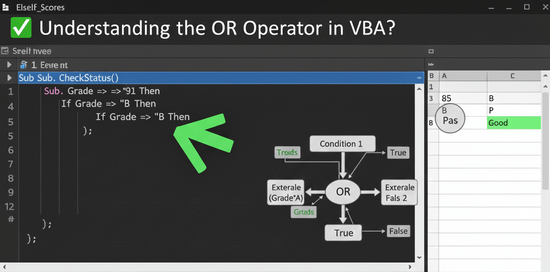
The Or operator is used to evaluate multiple conditions, returning True if any one of them is true.
The basic syntax looks like this:
If condition1 Or condition2 Then
' Action to perform if any condition is true
End If
This works perfectly for two conditions, but what if you have three, four, or even ten possible matches? That’s where careful structuring becomes essential.
✅ The key rule: VBA stops checking as soon as it finds a True condition. This is known as short-circuit evaluation.
✅ The Structure of Multiple OR Conditions
When you use more than two Or operators, VBA reads them from left to right.
・Basic Three-Condition Example
If Range("A1").Value = "Red" Or Range("A1").Value = "Blue" Or Range("A1").Value = "Green" Then
MsgBox "Primary color"
End If
✅ VBA evaluates each condition sequentially:
- Checks if A1 = “Red”
- If not, checks if A1 = “Blue”
- If not, checks if A1 = “Green”
If any of them isTrue, the entire statement returnsTrue.
✅ Using Parentheses for Clarity and Accuracy
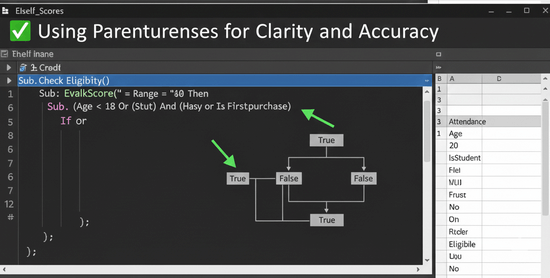
While parentheses are optional in simple Or statements, they become essential when combining And and Or together.
If (A = "X" Or A = "Y" Or A = "Z") And B = "OK" Then
MsgBox "Valid combination"
End If
✅ Parentheses make sure that the OR conditions are evaluated as a group before checking the AND. Without them, VBA might misinterpret the intended logic.
✅ Practical Scenario: Matching Multiple Text Values
One of the most common uses for multiple OR conditions is checking if a cell contains one of several predefined words.
・Example: Department Check
If dept = "Sales" Or dept = "Finance" Or dept = "Marketing" Or dept = "HR" Then
MsgBox "Department recognized"
Else
MsgBox "Unknown department"
End If
✅ This pattern is extremely common in report automation, where you need to categorize or validate entries dynamically.
✅ The Importance of Readability
When your OR chains get longer, readability can suffer. Long, single-line IF statements are harder to debug. To keep your logic maintainable, it’s good practice to split conditions across multiple lines using the line continuation character (_).
・Multi-line OR Condition
If Range("A1").Value = "High" Or _
Range("A1").Value = "Medium" Or _
Range("A1").Value = "Low" Or _
Range("A1").Value = "Critical" Then
MsgBox "Valid priority"
End If
✅ This structure improves clarity without changing logic — and makes editing conditions easier later.
✅ Combining OR with Numeric Conditions
You can also combine numeric conditions using OR.
If score = 50 Or score = 60 Or score = 70 Or score = 80 Then
MsgBox "Score matches milestone"
End If
✅ This is useful when checking against specific numeric thresholds or ranges of acceptable values.
✅ When to Use OR vs Select Case
Although multiple OR conditions are powerful, they’re not always the best solution.
When you’re checking the same variable against several possible values, the Select Case statement is often cleaner.
・Using Select Case
Select Case Range("A1").Value
Case "Red", "Blue", "Green"
MsgBox "Primary color"
Case Else
MsgBox "Not primary"
End Select
✅ Same result, more elegant structure.
However, if your conditions involve different variables, OR remains necessary.
How to Use IF Statements in Excel VBA to Run the Next Process When a Cell Is Blank
✅ Combining OR with AND for Complex Logic
Let’s explore a realistic example where multiple OR conditions are combined with AND:
If (Range("A1").Value = "Approved" Or Range("A1").Value = "Confirmed" Or Range("A1").Value = "Verified") _
And Range("B1").Value > 0 Then
MsgBox "Transaction ready"
End If
✅ This means “if A1 matches any of those statuses and B1 is positive.”
Parentheses ensure that VBA treats all three ORs as a single group before evaluating the AND.
✅ Multi-Condition Validation for Data Quality
Multiple OR conditions can also be used to validate data entries across columns.
If Cells(i, 1).Value = "Yes" Or Cells(i, 2).Value = "Yes" Or Cells(i, 3).Value = "Yes" Then
Cells(i, 4).Value = "Valid"
Else
Cells(i, 4).Value = "Invalid"
End If
✅ If any of the first three columns contains “Yes,” the record is valid.
✅ Using Variables to Simplify Long OR Statements
If you find yourself repeating the same reference, assign it to a variable.
Dim color As String
color = Range("A1").Value
If color = "Red" Or color = "Blue" Or color = "Green" Or color = "Yellow" Then
MsgBox "Color accepted"
End If
✅ Cleaner, faster, and easier to maintain.
✅ Avoiding Repetition with Arrays and Loops
When checking many possible matches, looping through an array is more efficient than writing long OR chains.
Dim colors As Variant, i As Long, target As String
colors = Array("Red", "Blue", "Green", "Yellow", "Purple")
target = Range("A1").Value
For i = LBound(colors) To UBound(colors)
If target = colors(i) Then
MsgBox "Color recognized"
Exit For
End If
Next i
✅ This approach is more scalable — especially if your condition list grows dynamically.
【VBA】Why You Might Need to Forcefully Stop a Loop
✅ Combining OR with Logical Functions
You can also use the IsEmpty, Len, or InStr functions within OR conditions to perform more advanced logic.
If IsEmpty(Range("A1")) Or Len(Range("A1").Value) = 0 Or Range("A1").Value = "N/A" Then
MsgBox "No valid data"
End If
✅ Combines blank, zero-length, and placeholder checks into one clean structure.
✅ Handling Case Sensitivity
By default, string comparisons in VBA are case-sensitive unless you specify otherwise.
To make OR conditions ignore case, use LCase() or UCase() functions.
If LCase(Range("A1").Value) = "yes" Or LCase(Range("A1").Value) = "ok" Or LCase(Range("A1").Value) = "confirmed" Then
MsgBox "Affirmative response"
End If
✅ Converts both sides to lowercase, ensuring consistent matching.
✅ Nested OR Conditions in Complex Scenarios
Sometimes you’ll have to combine groups of ORs for multiple fields.
If (status = "Active" Or status = "In Progress" Or status = "Pending") _
And (dept = "Finance" Or dept = "HR" Or dept = "Admin") Then
MsgBox "Condition met"
End If
✅ Parentheses separate the logic groups and keep evaluation order predictable.
✅ Using OR Conditions Across Multiple Cells
You can test several cells at once for a given value:
If Range("A1").Value = "Done" Or Range("B1").Value = "Done" Or Range("C1").Value = "Done" Then
MsgBox "At least one task completed"
End If
✅ Useful in checklist-style spreadsheets where completion may occur in multiple places.
✅ Optimizing Multi-OR Logic with Early Exit
VBA checks OR conditions sequentially, so place the most likely True condition first for better performance.
If A = "Yes" Or B = "Yes" Or C = "Yes" Or D = "Yes" Then
✅ If A = "Yes" is common, VBA stops there — saving time.
✅ Avoiding Common Errors with OR Conditions
| Mistake | Description | Solution |
|---|---|---|
| Missing parentheses | Causes unintended grouping | Use parentheses to define logic |
| Too many repeated cell references | Slows performance | Use variables |
| Inconsistent capitalization | Mismatched string comparison | Use LCase() or Option Compare Text |
Mixing And and Or carelessly | Produces wrong result | Always group conditions explicitly |
| Overly long IF lines | Hard to maintain | Use _ for line breaks |
✅ Clean, consistent structure prevents subtle logic bugs.
✅ Business Example — Automated Approval Workflow
Here’s a real-world macro using multiple OR conditions to control document approval.
Sub ApprovalCheck()
Dim status As String
status = Range("A2").Value
If status = "Approved" Or status = "Confirmed" Or status = "Validated" Or status = "Accepted" Then
MsgBox "Document ready for release"
Else
MsgBox "Approval pending"
End If
End Sub
✅ The macro checks four possible confirmation states — a common scenario in corporate systems.
✅ Using OR with Date Conditions
OR is equally useful when validating date ranges or exceptions.
If Date < startDate Or Date > endDate Or Date = specialDate Then
MsgBox "Outside standard range"
End If
✅ Checks multiple boundary conditions in one statement.
✅ Combining OR Conditions with Error Handling
You can gracefully skip or flag bad data using OR inside error-tolerant logic.
If Range("A1").Value = "" Or IsError(Range("A1").Value) Or Not IsNumeric(Range("A1").Value) Then
MsgBox "Invalid input"
End If
✅ Prevents runtime errors before processing.
✅ Advanced Trick: Using Join and Split for Flexible Matching
When the list of OR values comes from a text source, you can parse it dynamically.
Dim items As Variant, checkValue As String
items = Split("Red,Blue,Green,Yellow", ",")
checkValue = Range("A1").Value
If InStr("," & Join(items, ",") & ",", "," & checkValue & ",") > 0 Then
MsgBox "Match found"
End If
✅ Efficient when checking against dynamic data sources or configuration files.
✅ Multi-Sheet Validation Example
You can even use OR logic to check across multiple worksheets.
If Sheets("Sheet1").Range("A1").Value = "OK" Or _
Sheets("Sheet2").Range("A1").Value = "OK" Or _
Sheets("Sheet3").Range("A1").Value = "OK" Then
MsgBox "At least one sheet is ready"
End If
✅ Perfect for multi-stage reporting or distributed data entry.
✅ Simplifying OR Logic with Functions
When OR chains become too long, move them into a custom function for reusability.
Function IsApproved(status As String) As Boolean
IsApproved = (status = "Approved" Or status = "Confirmed" Or status = "Validated" Or status = "Cleared")
End Function
Then use it in your main macro:
If IsApproved(Range("A1").Value) Then
MsgBox "Ready for release"
End If
✅ This approach keeps main code clean and maintains all logic in one reusable place.
✅ Debugging Long OR Chains
If you’re not sure which condition is triggering, add temporary debug lines.
If A = "X" Or B = "X" Or C = "X" Then
Debug.Print "Condition met at: "; Now
End If
✅ The Immediate Window reveals when the condition fired — helpful in large data macros.
✅ Performance Tips for Long OR Chains
| Technique | Description |
|---|---|
| Place likely True first | Stops evaluation early |
| Use variables | Reduce redundant lookups |
| Replace with loops or arrays | Scales better with 10+ conditions |
| Avoid mixing types | Keep comparisons consistent |
| Test logic separately | Prevent unexpected grouping |
✅ Long OR statements are safe but can slow macros; optimizing saves runtime in bulk operations.
✅ Full Example — Multi-Condition Quality Checker
Here’s a full, practical VBA macro combining more than three OR conditions for robust data validation.
Sub QualityCheck()
Dim status As String, result As String
status = Range("B2").Value
If status = "Good" Or status = "Acceptable" Or status = "Fair" Or status = "Recheck" Then
result = "Pass"
Else
result = "Fail"
End If
Range("C2").Value = result
End Sub
✅ Checks four different acceptance levels before setting the output — ideal for manufacturing or auditing reports.
✅ Summary: Mastering Multi-OR Conditions in VBA IF Statements
| Concept | Description |
|---|---|
| Purpose | Evaluate multiple possibilities in one IF statement |
| Syntax | If condition1 Or condition2 Or condition3 Then |
| Parentheses | Use when mixing AND/OR |
| Performance Tip | Place most likely True first |
| Best Practice | Use line breaks and variables for clarity |
Key Takeaways:
- The
Oroperator allows flexible decision-making across multiple possible conditions. - Parentheses control grouping and ensure accuracy when mixed with
And. - For long condition lists, use arrays, loops, or custom functions to simplify code.
- Keep your logic readable — split across lines and use variables instead of repeating cell references.
- Efficient OR logic improves reliability, clarity, and speed in real-world Excel automation.
By mastering the art of combining three or more OR conditions in VBA IF statements, you’ll unlock powerful new capabilities for data validation, workflow automation, and dynamic decision-making — all while keeping your Excel projects elegant, efficient, and professional.