
How to Combine AND and OR Conditions in IF Statements in Excel VBA
Contents
- How to Combine AND and OR Conditions in IF Statements in Excel VBA
- ✅ Understanding the Difference Between AND and OR in VBA
- ✅ How VBA Evaluates Combined AND and OR Conditions
- ✅ Using Parentheses to Control Logic Flow
- ✅ Building Realistic Multi-Condition Logic
- ✅ Nesting AND and OR for Complex Scenarios
- ✅ Evaluating Order and Precedence: Step-by-Step Breakdown
- ✅ Common Business Pattern: Multi-Status Verification
- ✅ How to Read Complex IF Statements
- ✅ When to Split Conditions Across Multiple Lines
- ✅ Combining Text and Numeric Conditions
- ✅ Real-World Example: Sales Bonus Calculation
- ✅ The Role of NOT in Mixed Logic
- ✅ Avoiding Common Errors
- ✅ Testing and Debugging Complex Conditions
- ✅ Handling Multi-Column Validation
- ✅ Performance Optimization Tips
- ✅ Practical Business Example: Invoice Processing Logic
- ✅ Advanced Scenario: HR Eligibility Check
- ✅ Using Intermediate Boolean Variables
- ✅ Mixing Dates, Text, and Numbers
- ✅ When to Use Nested IF Instead of Combined Logic
- ✅ Common Pitfall: Ambiguous Evaluation
- ✅ Full Example — Multi-Condition Automation Logic
- ✅ Debugging Complex Multi-Condition Logic
- ✅ Summary: Combining AND and OR in VBA IF Statements
Conditional logic is at the heart of every Excel VBA project. Whether you’re building a financial report, automating approvals, or validating data, most real-world workflows require testing multiple conditions at once. You may need to perform an action only when several requirements are met — or when at least one among several possibilities is true.
In VBA, these multi-condition checks are made possible using the logical operators AND and OR. Each plays a distinct role:
ANDrequires all conditions to be true.ORrequires at least one condition to be true.
However, combining them in the same If statement introduces complexity. Without proper parentheses, VBA may misinterpret your intended logic — leading to unexpected results.
In this guide, you’ll learn how to safely and effectively combine AND and OR conditions inside If statements, using parentheses to control the flow of evaluation. We’ll explore syntax rules, real-world use cases, optimization strategies, and best practices for clean, maintainable automation.
By mastering these techniques, you’ll gain the ability to write professional-grade conditional logic that accurately reflects your business workflows.
✅ Understanding the Difference Between AND and OR in VBA
Before combining them, it’s crucial to understand how each operator behaves individually.
・The AND Operator
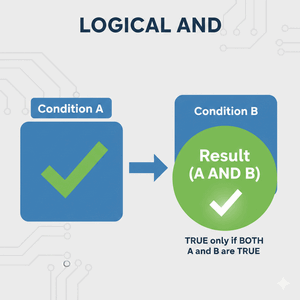
AND returns True only if all the conditions in the statement evaluate to True.
If Range("A1").Value > 0 And Range("B1").Value > 0 Then
MsgBox "Both values are positive"
End If
✅ If either cell contains zero or a negative number, the statement evaluates as False.
・The OR Operator
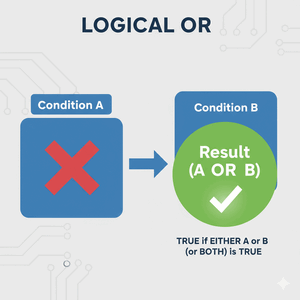
OR returns True if any one of the conditions is True.
If Range("A1").Value = "Yes" Or Range("B1").Value = "Yes" Then
MsgBox "At least one value is Yes"
End If
✅ This condition passes even if only one of the cells matches “Yes.”
✅ How VBA Evaluates Combined AND and OR Conditions
When you mix And and Or in the same If statement, VBA follows a strict evaluation order:
- Expressions inside parentheses are evaluated first.
- Then
Not, followed byAnd, and finallyOr.
This means And has higher priority than Or. Without parentheses, VBA might interpret your logic differently than you expect.
・For example
If A > 10 Or B > 10 And C > 10 Then
VBA evaluates it as:
If A > 10 Or (B > 10 And C > 10) Then
✅ To make your intention clear, you must use parentheses to group expressions properly.
Using Parentheses in IF Statements for Multiple Conditions in Excel VBA
✅ Using Parentheses to Control Logic Flow
Parentheses define how VBA interprets your logic. They tell VBA which conditions to evaluate together.
・Example: Mixed AND / OR Without Parentheses
If Range("A1").Value = "Yes" Or Range("B1").Value = "Yes" And Range("C1").Value = "Yes" Then
MsgBox "Condition met"
End If
You might think this means:
“If either A1 or B1 is Yes, and C1 is Yes.”
But VBA actually reads it as:
“If A1 is Yes, or (B1 and C1 are both Yes).”
・Correct Version Using Parentheses
If (Range("A1").Value = "Yes" Or Range("B1").Value = "Yes") And Range("C1").Value = "Yes" Then
MsgBox "Condition met"
End If
✅ Now the logic is clear: A1 or B1 must be “Yes,” and C1 must also be “Yes.”
✅ Building Realistic Multi-Condition Logic
・Example: Approval Workflow
If (Range("A1").Value = "Approved" Or Range("A1").Value = "Confirmed") _
And Range("B1").Value = "Active" Then
MsgBox "Transaction ready"
End If
✅ Combines business logic naturally: the document must be “Approved” or “Confirmed,” and the user must be “Active.”
✅ Nesting AND and OR for Complex Scenarios
In large workflows, conditions often depend on multiple fields at once — such as department, role, and budget.
If (Dept = "Finance" Or Dept = "Accounting") And (Role = "Manager" Or Role = "Supervisor") And Budget > 10000 Then
MsgBox "Eligible for approval"
End If
✅ Parentheses create logical “clusters” of related conditions. Each group is evaluated separately and combined with AND.
✅ Evaluating Order and Precedence: Step-by-Step Breakdown
Take this example:
If (A > 5 Or B > 5) And (C > 5 Or D > 5) Then
MsgBox "At least two are greater than five"
End If
VBA does the following:
- Evaluates
(A > 5 Or B > 5)→ returnsTrueorFalse. - Evaluates
(C > 5 Or D > 5)→ returnsTrueorFalse. - Applies
Andbetween the two results.
✅ Both groups must be True for the entire statement to succeed.
✅ Common Business Pattern: Multi-Status Verification
If (status = "Pending" Or status = "In Review" Or status = "Delayed") _
And (userRole = "Manager" Or userRole = "Director") Then
MsgBox "Managerial review required"
End If
✅ Combines several OR conditions within each category — status and user role — then links the groups with AND.
✅ How to Read Complex IF Statements
A great tip:
- Read from the inside out — evaluate parentheses first.
- Then apply AND and OR between grouped results.
This mindset keeps your code predictable even as logic grows.
✅ When to Split Conditions Across Multiple Lines
Long IF statements can quickly become unreadable. Use the line continuation character _ to improve clarity.
If (A = "Yes" Or B = "Yes" Or C = "Yes") And _
(D > 10 Or E > 20) And _
(F <> "N/A") Then
MsgBox "Complex condition satisfied"
End If
✅ Breaking statements like this improves readability and helps avoid mistakes.
✅ Combining Text and Numeric Conditions
If (Region = "East" Or Region = "West") And (Sales > 50000 Or Profit > 10000) Then
MsgBox "High performance region"
End If
✅ Logical combinations can involve any data type — strings, numbers, or dates.
✅ Real-World Example: Sales Bonus Calculation
If (Quarter = "Q1" Or Quarter = "Q2" Or Quarter = "Q3") And _
(Sales > 100000 Or ProfitMargin > 0.2) Then
MsgBox "Bonus applicable"
Else
MsgBox "Bonus not applicable"
End If
✅ Demonstrates multi-condition evaluation across both categorical and numeric data.
✅ The Role of NOT in Mixed Logic
Adding the Not operator can invert results, but parentheses become even more important.
If Not (A = "Closed" Or A = "Cancelled") And B = "Active" Then
MsgBox "Active and valid record"
End If
✅ Not applies to the entire grouped expression — making logic precise and predictable.
✅ Avoiding Common Errors
| Mistake | Description | Fix |
|---|---|---|
| Missing parentheses | Causes wrong evaluation order | Add parentheses to clarify grouping |
| Misplaced Not | Negates wrong part of logic | Wrap correct expression in parentheses |
| Overly long IF lines | Hard to read/debug | Use _ and indent code |
| Overlapping conditions | Multiple True results conflict | Reorder from most specific to least |
| Inconsistent data types | Comparing text and numbers | Ensure consistent variable types |
✅ Testing and Debugging Complex Conditions
When conditions behave unexpectedly, use Debug.Print to display intermediate results in the Immediate Window.
Debug.Print (A > 5 Or B > 5), (C > 5 And D > 5)
✅ This helps confirm whether each part of your expression returns True or False.
✅ Handling Multi-Column Validation
If (Cells(i, 1).Value = "Yes" Or Cells(i, 2).Value = "Yes") And _
(Cells(i, 3).Value > 0 Or Cells(i, 4).Value > 0) Then
Cells(i, 5).Value = "Valid"
Else
Cells(i, 5).Value = "Invalid"
End If
✅ Checks multiple columns at once — a practical pattern for Excel data validation automation.
✅ Performance Optimization Tips
| Tip | Description |
|---|---|
| Use variables | Store values in memory before testing |
| Place likely true conditions first | Short-circuit evaluation improves speed |
| Avoid redundant tests | Group similar conditions |
| Comment complex logic | Aids readability and debugging |
| Break long IFs into multiple logical steps | Improves clarity |
✅ Clear logic isn’t just easier to maintain — it also runs faster.
✅ Practical Business Example: Invoice Processing Logic
Sub InvoiceCheck()
Dim amount As Double, status As String, region As String
amount = Range("B2").Value
status = Range("C2").Value
region = Range("D2").Value
If (status = "Approved" Or status = "Verified") And _
(amount > 1000 Or region = "International") Then
MsgBox "Invoice ready for payment"
Else
MsgBox "Pending review"
End If
End Sub
✅ Combines multiple OR conditions (status and region) linked by an AND for final validation.
✅ Advanced Scenario: HR Eligibility Check
If (YearsExperience >= 5 And Education = "Bachelor") Or _
(YearsExperience >= 3 And Education = "Master") Or _
(YearsExperience >= 1 And Education = "PhD") Then
MsgBox "Eligible for recruitment"
Else
MsgBox "Not eligible"
End If
✅ Combines several AND/OR sets to match different qualification paths.
✅ Using Intermediate Boolean Variables
To simplify long logic chains, you can break them into Boolean variables.
Dim isValidStatus As Boolean, isValidRegion As Boolean
isValidStatus = (status = "Active" Or status = "Pending")
isValidRegion = (region = "Domestic" Or region = "International")
If isValidStatus And isValidRegion Then
MsgBox "Process eligible"
End If
✅ Improves readability and debugging for complex logic trees.
✅ Mixing Dates, Text, and Numbers
If (Date >= startDate And Date <= endDate) And _
(Category = "A" Or Category = "B" Or Category = "C") Then
MsgBox "Data within range and valid category"
End If
✅ Common in financial reporting or KPI dashboards where date ranges and category filters combine.
✅ When to Use Nested IF Instead of Combined Logic
Sometimes, breaking logic into separate IF blocks improves readability.
If Category = "A" Or Category = "B" Then
If Amount > 1000 Then
MsgBox "Approved"
End If
End If
✅ Choose readability over compactness when logic becomes too dense.
✅ Common Pitfall: Ambiguous Evaluation
Consider this statement:
If A = "Yes" Or B = "Yes" And C = "Yes" Then
- Many assume it means
(A = Yes Or B = Yes) And C = Yes. - But VBA reads it as
A = Yes Or (B = Yes And C = Yes).
✅ Always clarify with parentheses to ensure expected behavior.
✅ Full Example — Multi-Condition Automation Logic
Sub CustomerValidation()
Dim country As String, age As Integer, accountStatus As String
country = Range("A2").Value
age = Range("B2").Value
accountStatus = Range("C2").Value
If ((country = "USA" Or country = "UK" Or country = "Canada") And age >= 18) _
Or (accountStatus = "Premium" And age >= 16) Then
MsgBox "Customer eligible for promotion"
Else
MsgBox "Not eligible"
End If
End Sub
✅ Demonstrates nested AND/OR groups with parentheses for unambiguous logic.
✅ Debugging Complex Multi-Condition Logic
- Break the logic into smaller parts.
- Use Boolean variables for readability.
- Print intermediate results in the Immediate Window.
- Always verify grouping with parentheses.
✅ Consistent structure prevents logical errors and improves maintainability.
✅ Summary: Combining AND and OR in VBA IF Statements
| Concept | Description |
|---|---|
| Purpose | Combine multiple logical paths in one IF statement |
| AND | Requires all conditions to be True |
| OR | Requires at least one condition to be True |
| Parentheses | Control evaluation order and grouping |
| Best Practice | Use _, variables, and comments for clarity |
Key Takeaways:
- Parentheses are mandatory when combining AND and OR to avoid ambiguous results.
- Group related conditions together for clarity.
- Use line breaks and variables to manage long statements.
- Place the most probable True condition early for faster execution.
- Properly structured logic makes your automation accurate, efficient, and easy to maintain.
By mastering how to combine AND and OR conditions in VBA If statements, you gain the power to write macros that mirror complex real-world decision logic — from data validation and workflow automation to financial modeling and dynamic reporting — all with precision and elegance.