
How to Use Multiple Conditions in VBA If Statements: Efficient Branching and Practical Applications
Contents
- How to Use Multiple Conditions in VBA If Statements: Efficient Branching and Practical Applications
- ✅ Why Mastering Multi-Condition If Statements Is Important
- ✅ Understanding the Basic Structure of an If Statement
- ✅ Expanding to Multiple Conditions with ElseIf
- ✅ Using Logical Operators for Complex Conditions
- ✅ Step-by-Step: Combining Multiple Conditions Efficiently
- ✅ Handling Text and String Comparisons
- ✅ Using Nested If Statements (When Necessary)
- ✅ Replacing Long If Chains with Select Case
- ✅ Step-by-Step: When to Use If vs Select Case
- ✅ Using If Statements Inside Loops
- ✅ Combining If Statements with Worksheet Functions
- ✅ Multi-Condition Example: Approval Workflow
- ✅ Advanced Example: Conditional Operations Based on Date
- ✅ Step-by-Step: Refactoring Long If Chains for Readability
- ✅ Using Boolean Variables for Simplified Logic
- ✅ Error Handling Within If Statements
- ✅ Real-World Use Cases of Multi-Branch If Statements
- ✅ Best Practices for Efficient If Logic
- ✅ Performance Optimization Tips
- ✅ Full Example: Automated Approval and Email Notification
- ✅ Summary: Build Smarter Automation with Multi-Condition If Statements
Conditional logic is at the heart of every automation system, whether you’re validating data, controlling workflow, or responding to user inputs. In Excel VBA, the If statement is the most fundamental structure for decision-making — but many users struggle when they need to handle multiple conditions efficiently.
This guide explores how to create and optimize multi-branch If statements in VBA, helping you write cleaner, faster, and more professional code. By the end, you’ll understand every technique — from simple “If–Else” chains to “Select Case” and logical operators — along with practical real-world examples.
✅ Why Mastering Multi-Condition If Statements Is Important
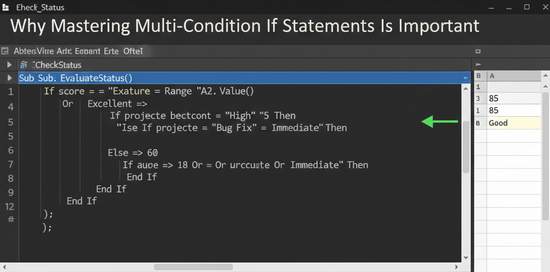
When automating Excel with VBA, you’ll often face decisions that depend on more than one condition — for instance, checking cell values, ranges, or multiple variables before performing an action.
Benefits of efficient condition branching:
- Reduces code duplication and improves readability
- Enhances performance in large automation scripts
- Simplifies debugging and long-term maintenance
- Provides precise control over workflows
- Integrates smoothly with RPA tools such as UiPath or Power Automate
Mastering this concept is a must-have skill for any professional who wants to write robust VBA code that behaves intelligently across complex Excel tasks.
✅ Understanding the Basic Structure of an If Statement
Before moving into multiple branches, let’s review the fundamentals.
If condition Then
' Code to execute when condition is True
Else
' Code to execute when condition is False
End If
・Example: Simple numeric check
If Range("A1").Value > 100 Then
MsgBox "Value is greater than 100"
Else
MsgBox "Value is 100 or less"
End If
✅ This example runs one of two possible branches depending on the condition.
✅ Expanding to Multiple Conditions with ElseIf
When there are several possible outcomes, use ElseIf.
This allows your program to choose the correct branch among many options.
・Example: Grade evaluation
Sub CheckGrade()
Dim score As Integer
score = Range("B2").Value
If score >= 90 Then
MsgBox "Grade: A"
ElseIf score >= 80 Then
MsgBox "Grade: B"
ElseIf score >= 70 Then
MsgBox "Grade: C"
ElseIf score >= 60 Then
MsgBox "Grade: D"
Else
MsgBox "Grade: F"
End If
End Sub
✅ The program checks conditions sequentially from top to bottom.
Once one condition is true, the rest are ignored.
This is the most common and practical form of multi-branch If statements in VBA.
✅ Using Logical Operators for Complex Conditions
To combine or refine conditions, VBA provides logical operators:
| Operator | Meaning | Example |
|---|---|---|
And | Both conditions must be true | If x > 0 And y > 0 Then |
Or | At least one condition is true | If x > 0 Or y > 0 Then |
Not | Negates a condition | If Not IsEmpty(A1) Then |
・Example: Multi-variable logic
If Range("A1").Value > 0 And Range("B1").Value > 0 Then
MsgBox "Both values are positive"
Else
MsgBox "At least one is zero or negative"
End If
✅ Logical operators give you flexibility to combine multiple tests inside a single If line.
How to Use Multiple Conditions in VBA If Statements: Efficient Branching and Practical Applications
✅ Step-by-Step: Combining Multiple Conditions Efficiently
・1. Use parentheses for clarity
Parentheses help control the order of evaluation and improve readability.
If (x > 0 And y > 0) Or z > 100 Then
MsgBox "Condition met"
End If
Without parentheses, VBA evaluates conditions from left to right — which can cause logic errors if you’re not careful.
・2. Avoid unnecessary nesting
Deeply nested If statements reduce clarity. For example:
If A > 0 Then
If B > 0 Then
If C > 0 Then
MsgBox "All positive"
End If
End If
End If
✅ Instead, use logical operators:
If A > 0 And B > 0 And C > 0 Then
MsgBox "All positive"
End If
✅ Handling Text and String Comparisons
When working with text, you can compare strings using = or <> (not equal).
・Example: Department-based decision
Sub DepartmentCheck()
Dim dept As String
dept = Range("A2").Value
If dept = "Sales" Then
MsgBox "Send to Sales report"
ElseIf dept = "Finance" Then
MsgBox "Send to Finance report"
ElseIf dept = "HR" Then
MsgBox "Send to HR summary"
Else
MsgBox "Unknown department"
End If
End Sub
✅ Simple and readable for text-based decisions.
・Case-insensitive comparison
By default, VBA string comparison is case-sensitive. To make it ignore case:
Option Compare Text
Place this line at the top of the module.
✅ Using Nested If Statements (When Necessary)

Sometimes one decision depends on another — for example, checking multiple factors like region and sales target.
・Example: Nested structure
Sub CheckPerformance()
Dim region As String
Dim sales As Long
region = Range("A2").Value
sales = Range("B2").Value
If region = "East" Then
If sales > 100000 Then
MsgBox "Excellent performance in East"
Else
MsgBox "Needs improvement in East"
End If
ElseIf region = "West" Then
If sales > 120000 Then
MsgBox "Excellent performance in West"
Else
MsgBox "Needs improvement in West"
End If
End If
End Sub
✅ Nested logic is sometimes necessary but should be used carefully to maintain readability.
✅ Replacing Long If Chains with Select Case
When many discrete conditions exist (especially based on a single variable), Select Case is cleaner and faster than multiple ElseIf branches.
・Example: Select Case for grades
Sub GradeSelectCase()
Dim score As Integer
score = Range("B2").Value
Select Case score
Case Is >= 90
MsgBox "A"
Case Is >= 80
MsgBox "B"
Case Is >= 70
MsgBox "C"
Case Is >= 60
MsgBox "D"
Case Else
MsgBox "F"
End Select
End Sub
✅ Easier to maintain, faster to read, and efficient for long condition lists.
✅ Step-by-Step: When to Use If vs Select Case
| Situation | Best Approach |
|---|---|
| Comparing one variable to multiple thresholds | Select Case |
| Comparing multiple unrelated variables | If / ElseIf |
| Conditions involve AND/OR logic | If statement |
| Many exclusive outcomes (fixed set) | Select Case |
| Nested hierarchy decisions | Nested If |
Knowing which structure to use keeps your VBA code optimized and easy to understand.
✅ Using If Statements Inside Loops
Combining loops with conditionals creates powerful automation.
・Example: Highlight cells with low sales
Sub HighlightLowSales()
Dim i As Long
For i = 2 To 20
If Cells(i, 2).Value < 5000 Then
Cells(i, 2).Interior.Color = vbYellow
End If
Next i
End Sub
✅ Checks each row and marks those with low values — a common real-world scenario.
Why Loop Until a Blank Row in VBA?
✅ Combining If Statements with Worksheet Functions
You can use Excel’s built-in functions within If statements to simplify logic.
・Example: Using IsEmpty and IsNumeric
If IsEmpty(Range("A1")) Then
MsgBox "Cell is empty"
ElseIf Not IsNumeric(Range("A1")) Then
MsgBox "Value is not numeric"
Else
MsgBox "Valid input"
End If
✅ Great for input validation, ensuring your automation only processes proper data.
✅ Multi-Condition Example: Approval Workflow
・Scenario
You want to approve a budget if:
- Department = “Finance”
- Amount < 100000
- Status = “Pending”
・Code
Sub BudgetApproval()
Dim dept As String
Dim amount As Currency
Dim status As String
dept = Range("A2").Value
amount = Range("B2").Value
status = Range("C2").Value
If dept = "Finance" And amount < 100000 And status = "Pending" Then
MsgBox "Budget Approved"
Else
MsgBox "Requires Review"
End If
End Sub
✅ Shows how to manage multiple logic conditions efficiently.
✅ Advanced Example: Conditional Operations Based on Date
・Scenario: Send alerts depending on the deadline
Sub DeadlineAlert()
Dim dueDate As Date
dueDate = Range("A2").Value
If dueDate < Date Then
MsgBox "Task overdue!"
ElseIf dueDate = Date Then
MsgBox "Due today!"
ElseIf dueDate <= Date + 3 Then
MsgBox "Due within 3 days"
Else
MsgBox "Still plenty of time"
End If
End Sub
✅ Perfect for project monitoring dashboards or reminders in automated workflows.
✅ Step-by-Step: Refactoring Long If Chains for Readability
- Group related conditions using parentheses or comments.
- Move complex logic into helper functions.
- Add indentation to show logical hierarchy.
- Replace repeating values with variables.
- Use Select Case when applicable.
・Example of refactored structure
If IsValidData = True And IsApproved = True Then
MsgBox "Process complete"
Else
MsgBox "Check validation and approval steps"
End If
✅ Code becomes cleaner and easier to maintain.
✅ Using Boolean Variables for Simplified Logic
Instead of writing long conditions repeatedly, store results in Boolean variables.
Sub SimplifyLogic()
Dim IsManager As Boolean
Dim IsBudgetOK As Boolean
IsManager = (Range("A2").Value = "Manager")
IsBudgetOK = (Range("B2").Value < 50000)
If IsManager And IsBudgetOK Then
MsgBox "Approved"
Else
MsgBox "Rejected"
End If
End Sub
✅ Improves both readability and maintainability.
✅ Error Handling Within If Statements
Combine error management with conditions for robust code.
On Error GoTo ErrorHandler
If Range("A1").Value = "" Then
MsgBox "Input missing"
Else
Range("B1").Value = 100 / Range("A1").Value
End If
Exit Sub
ErrorHandler:
MsgBox "Error: Invalid input"
✅ Prevents runtime errors from breaking automation.
✅ Real-World Use Cases of Multi-Branch If Statements
| Use Case | Description |
|---|---|
| Data validation | Check data completeness before processing |
| Workflow control | Approve or reject records based on multiple criteria |
| Dynamic formatting | Apply styles based on value thresholds |
| Automated reminders | Trigger alerts based on deadlines |
| RPA task routing | UiPath or VBA decides which branch of process to execute |
By embedding If logic within larger workflows, VBA becomes a decision engine capable of managing real-world business scenarios.
✅ Best Practices for Efficient If Logic
- Use
ElseIfinstead of multiple independentIfblocks. - Keep conditions as simple as possible.
- Combine related checks using
And/Or. - Avoid unnecessary nesting.
- Comment your logic for clarity.
- Use consistent indentation and naming conventions.
- Test all possible branches, especially boundary cases.
Following these practices ensures scalability and reliability in professional-grade VBA projects.
✅ Performance Optimization Tips
- Minimize repeated range references. Store values in variables before testing.
- Use
Select Casefor long discrete value checks. - Exit early. Once a condition is true, use
Exit Subto stop further evaluation. - Avoid redundant conditions. Merge where possible.
- Debug with
Debug.Printto trace flow through branches.
Efficient logic reduces execution time significantly, especially in large datasets or automated printing/export routines.
✅ Full Example: Automated Approval and Email Notification
This combines multiple branching, logic operators, and real-world automation.
Sub ApprovalWorkflow()
Dim dept As String
Dim budget As Double
Dim status As String
dept = Range("A2").Value
budget = Range("B2").Value
status = Range("C2").Value
If dept = "Finance" And budget < 50000 And status = "Pending" Then
MsgBox "Approved - Finance small budget"
ElseIf dept = "Finance" And budget >= 50000 Then
MsgBox "Escalate to manager"
ElseIf dept = "HR" And status = "Pending" Then
MsgBox "HR request awaiting approval"
Else
MsgBox "No action required"
End If
End Sub
✅ Commonly used pattern for decision automation integrated with larger processes.
In an RPA context, UiPath could read the status and decide next workflow steps automatically.
✅ Summary: Build Smarter Automation with Multi-Condition If Statements
If,ElseIf, andElseform the foundation of decision-making in VBA.- Combine conditions using
And,Or, andNotfor complex scenarios. - Use parentheses to control evaluation and improve clarity.
- Replace long chains with
Select Casewhere possible. - Apply in loops, workflows, and validations for real-world efficiency.
- Optimize for readability, scalability, and maintainability.
- Integrate logic into RPA tools for end-to-end intelligent automation.
By mastering multi-branch If statements in VBA, you move from basic automation to dynamic logic-driven workflows — capable of making smart, context-aware decisions automatically.
Your VBA scripts will not only react to data but also think through conditions, leading to faster, more reliable business automation.