
How to Specify Cells Using Range, Cells, and Variables in Excel VBA: Complete Guide for Beginners and Professionals
Contents
- How to Specify Cells Using Range, Cells, and Variables in Excel VBA: Complete Guide for Beginners and Professionals
- ✅ Understanding How to Specify Cells Using Range, Cells, and Variables in VBA
- ✅ How to Specify Cells Using the Range Object
- ✅ How to Specify Cells Using the Cells Property
- ✅ Using Variables to Specify Cells Dynamically
- ✅ Combining Range, Cells, and Variables: The Real VBA Power Technique
- ✅ Step-by-Step Guide: How to Choose Between Range and Cells
- ✅ Real Business Examples Using Range, Cells, and Variables
- ✅ Advanced Techniques for Referencing Cells
- ✅ Common Mistakes When Specifying Cells — and How to Avoid Them
- ✅ Performance Considerations When Referencing Cells
- ✅ Summary:Mastering Cell Referencing Enables Powerful, Flexible VBA Automation
One of the most fundamental skills in Excel VBA is understanding how to specify and reference cells. Whether you are writing values, reading data, formatting tables, or building automated reporting systems, everything in VBA starts with selecting the right cell or range. Yet many users remain unsure about when to use Range, when to use Cells, and how to combine both with variables to build powerful dynamic references.
Mastering these referencing techniques not only allows you to write cleaner and more flexible code, but also ensures that your automation can adapt to expanding datasets, dynamic structures, and real business workflows. This becomes especially important when preparing sheets for automation tools such as UiPath, which depend on predictable and accurately referenced cell locations.
This complete guide explains how to specify cells using Range, Cells, and variables, and how to apply them in real-world VBA tasks.
✅ Understanding How to Specify Cells Using Range, Cells, and Variables in VBA
・The three main ways to reference cells in VBA
Excel VBA provides several methods for referencing cells:
Range— Best for A1-style references (“A1”, “A1:B10”)Cells— Best for numeric references (row/column index)- Variables — Essential for dynamic, scalable automation
Understanding when to use each method is the key to writing flexible and maintainable code.
・Why cell referencing matters
Every data-driven operation — reading, writing, formatting, or clearing — depends on accurate cell references.
Dynamic references let your code adapt automatically to:
- Changing number of rows
- Moving columns
- Expanding datasets
- Different sheets
- User-driven input ranges
In real business automation, static references are not enough. You need dynamic, variable-based cell control.
✅ How to Specify Cells Using the Range Object
・Basic syntax of Range (Syntax: Range reference)
Range("A1")
This specifies cell A1.
・Specifying a multi-cell range

Range("A1:B5")
・Referencing non-contiguous cells

Range("A1, C1, E1")
・Referencing entire rows or columns
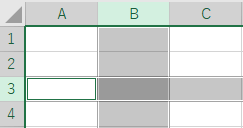
Range("3:3")   ' Entire row 3
Range("B:B")   ' Entire column B
・Reading and writing values with Range
Range("A1").Value = "Hello"
msg = Range("A1").Value
・Range with worksheet qualifier
Always specify the worksheet in real automation:
Worksheets("Data").Range("B2").Value = 10
This prevents errors when different sheets are active.
✅ How to Specify Cells Using the Cells Property
・Cells uses numeric references
Cells(row, column) makes referencing programmatic:
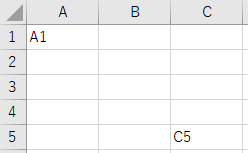
Cells(1, 1) = "A1"
Cells(5, 3) = "C5"
・Why Cells is powerful
- Works perfectly with loops
- Works with variables
- Supports dynamic row/column detection
- Helps when column letters move or change
・Example: Filling a column using Cells
For r = 1 To 10
Cells(r, 2).Value = r * 10
Next r
・Cells combined with a worksheet qualifier
Sheets("Report").Cells(3, 5).Value = "OK"
✅ Using Variables to Specify Cells Dynamically
・The key to true automation
Variables allow cell references to be determined at runtime, making automation flexible.
・Basic example with variables
Dim r As Long
Dim c As Long
r = 10
c = 4
Cells(r, c).Value = "Dynamic reference"
・Using variables with Range
Dim rng As Range
Set rng = Range("A1")
rng.Value = "Hello"
・Dynamic ranges using variables
Dim lastRow As Long
lastRow = Cells(Rows.Count, "A").End(xlUp).Row
Range("A2:A" & lastRow).ClearContents
・Dynamic column reference using variables
colNum = 5
Cells(1, colNum).Value = "Header"
・Dynamic two-dimensional range from variables
Range(Cells(2, 1), Cells(20, 5)).Clear
This is one of the most powerful referencing techniques in VBA.
Excel VBA: How to Specify, Change, Get Sheet Name, and Reference Values from the Active Sheet
✅ Combining Range, Cells, and Variables: The Real VBA Power Technique
・The “Range(Cells(), Cells())” pattern
This pattern creates dynamic ranges:
Range(Cells(1, 1), Cells(10, 5)).Interior.Color = vbYellow
This selects A1:E10 regardless of the number of rows or columns.
・Example: Highlighting a variable-sized table
lastRow = Cells(Rows.Count, 1).End(xlUp).Row
lastCol = Cells(1, Columns.Count).End(xlToLeft).Column
Range(Cells(1, 1), Cells(lastRow, lastCol)).Interior.Color = RGB(240,240,240)
Perfect for dashboards and reports.
・Example: Clearing dynamic tables
Range(Cells(2, 1), Cells(lastRow, lastCol)).ClearContents
・Example: Copying dynamic data
Range(Cells(1, 1), Cells(lastRow, 5)).Copy Destination:=Sheets("Output").Range("A1")
✅ Step-by-Step Guide: How to Choose Between Range and Cells
・Step 1: Use Range for fixed references
If the reference never changes:
Range("A1")
・Step 2: Use Cells for numeric or variable-driven referencing
Perfect for loops:
Cells(i, j)
・Step 3: Combine them for dynamic ranges
Range(Cells(startRow, startCol), Cells(endRow, endCol))
・Step 4: Qualify all references with a worksheet
Avoid ambiguity:
With Worksheets("Sales")
.Cells(5, 2).Value = 100
End With
・Step 5: Keep references clean and logical
Avoid referencing the wrong sheet or dynamic values.
✅ Real Business Examples Using Range, Cells, and Variables
・Example 1: Reading a dynamic list of orders
lastRow = Cells(Rows.Count, "A").End(xlUp).Row
For r = 2 To lastRow
orderID = Cells(r, 1).Value
Next r
・Example 2: Writing results next to processed data
Cells(r, 4).Value = "Completed"
・Example 3: Preparing a sheet for UiPath automation
UiPath reads Excel best when ranges are clean and predictable.
Range(Cells(1, 1), Cells(lastRow, lastCol)).ClearFormats
This ensures robots read data cleanly.
・Example 4: Generating a dynamic summary table
For r = 2 To lastRow
For c = 2 To lastCol
Summary.Cells(r, c).Value = Data.Cells(r, c).Value * 1.1
Next c
Next r
・Example 5: Validating user input
If Cells(5, 2).Value = "" Then
MsgBox "Please enter a value."
End If
・Example 6: Auto-filling a column with monthly totals
For r = 2 To lastRow
Cells(r, 10).Formula = "=SUM(B" & r & ":H" & r & ")"
Next r
✅ Advanced Techniques for Referencing Cells
・Referencing a range using Named Ranges
Range("SalesData").ClearContents
・Offsetting from a reference
Range("A1").Offset(2, 3).Value = "Shifted cell"
・Using With blocks for shorter code
With Worksheets("Data")
.Cells(5, 2).Value = "OK"
.Range("A1:F10").Borders.LineStyle = xlContinuous
End With
・Using Evaluate for advanced expressions
Range("A1").Value = Evaluate("SUM(B1:B10)")
・Using Union to reference multiple areas
Union(Range("A1"), Range("C1")).Interior.Color = vbYellow
✅ Common Mistakes When Specifying Cells — and How to Avoid Them
・Using unqualified references
Cells(1,1)
This refers to the active sheet, which is risky.
Always qualify:
Worksheets("Sheet1").Cells(1,1)
・Mixing Range and Cells incorrectly
❌ Wrong:
Range("A1", Cells(5,5))
✔ Correct:
Range(Cells(1,1), Cells(5,5))
・Using fixed ranges in dynamic datasets
Avoid:
Range("A1:A1000")
Use dynamic:
Range("A1:A" & lastRow)
・Not using variables for column references
If column letters shift, code breaks.
Use numeric references instead.
✅ Performance Considerations When Referencing Cells
・Avoid selecting or activating cells
❌ Slow:
Range("A1").Select
Selection.Value = 10
✔ Fast:
Range("A1").Value = 10
・Use bulk operations instead of loops
Reading/writing to the sheet is slow.
Use arrays when possible.
・Qualify sheets inside loops
This prevents accidental mis-referencing.
・Disable screen updating for large tasks
Application.ScreenUpdating = False
・For UiPath automation, clean formatting before use
UsedRange.ClearFormats
UsedRange.NumberFormat = "General"
✅ Summary:Mastering Cell Referencing Enables Powerful, Flexible VBA Automation
- Use Range for simple, fixed A1-style references.
- Use Cells for numeric indexing, loops, and dynamic automation.
- Use variables to create flexible and scalable references.
- Combine Range(Cells(), Cells()) to build dynamic 2D ranges.
- Always qualify your references with the worksheet.
- Use dynamic row/column detection to adapt to changing datasets.
- Avoid selecting/activating cells for faster performance.
- Apply these techniques to build reliable scripts for business reporting and RPA workflows.
By mastering these three referencing techniques — Range, Cells, and variables — you gain complete control over Excel automation. This foundation allows you to create robust, dynamic VBA solutions capable of handling large datasets, shifting structures, and real business processes with confidence.
VBA Get & Paste Values: The Complete Guide for Efficient Data Handling