
When writing VBA macros in Excel, mastering loops and arrays is key to achieving fast and efficient automation.
While a regular For loop can process data cell by cell, combining it with an array dramatically improves performance — allowing you to handle thousands of rows in memory within seconds.
In this complete guide, you’ll learn how to use the For loop with arrays in Excel VBA, including declaration, initialization, looping techniques, and practical applications.
By the end, you’ll understand how to make your VBA code not only cleaner but also significantly faster and more professional.
✅ What Is an Array in VBA?
Contents
- ✅ What Is an Array in VBA?
- ✅ Declaring Arrays in VBA
- ✅ Looping Through Arrays Using For Loops
- ✅ Finding Array Boundaries Automatically
- ✅ Multidimensional Arrays with For Loops
- ✅ Storing Range Data into an Array
- ✅ Writing Array Data Back to Worksheet
- ✅ Dynamic Arrays with Unknown Size
- ✅ Filtering and Transforming Data in Arrays
- ✅ Using For Each with Arrays (Variant Only)
- ✅ Real-World Example: Fast Data Processing Using Arrays
- ✅ Error Handling in Array Loops
- ✅ Common Mistakes and Solutions
- ✅ Performance Optimization Tips
- ✅ Summary:Mastering For Loops with Arrays in Excel VBA
・Definition
An array is a data structure that stores multiple values under one variable name.
Instead of having separate variables like Value1, Value2, Value3, you can store them all in a single array variable and access them using index numbers.
For example:
Dim Sales(1 To 12) As Double
This declares an array that can hold 12 monthly sales values — one for each month.
・Why use arrays?
Arrays are extremely useful for:
- Storing and processing large sets of data quickly
- Reducing repetitive variable declarations
- Performing calculations or lookups in memory (faster than cell-by-cell access)
- Creating temporary data structures for automation or reporting
In short: arrays make your VBA cleaner, faster, and scalable.
✅ Declaring Arrays in VBA
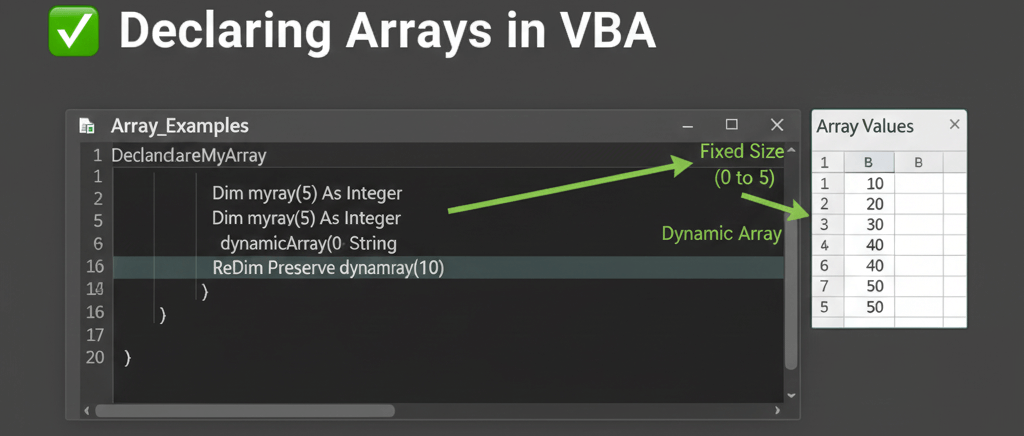
・Fixed-size array
Dim Numbers(1 To 5) As Integer
This creates an array with five elements, indexed from 1 to 5.
・Zero-based array (default)
Dim Names(4) As String
By default, VBA arrays start at 0 unless you specify otherwise.
This example creates an array with indexes: 0, 1, 2, 3, 4.
・Dynamic array
When you don’t know how many elements you’ll need:
Dim Data() As Variant
ReDim Data(1 To 10)
ReDim lets you define the size later in the code.
You can also resize it again during runtime using ReDim Preserve.
・Example: Expanding a dynamic array
ReDim Preserve Data(1 To 20)
✅ Keeps existing data intact while increasing array size to 20.
⚠️ Note: Preserve only works on the last dimension of an array.
✅ Looping Through Arrays Using For Loops
・Basic For loop example
Sub LoopArray()
Dim i As Integer
Dim Numbers(1 To 5) As Integer
For i = 1 To 5
Numbers(i) = i * 10
Next i
End Sub
✅ Stores values 10, 20, 30, 40, 50 in the array.
✅ The For loop allows you to control each index manually.
・Reading values from the array
Sub ReadArray()
Dim i As Integer
Dim Numbers(1 To 5) As Integer
For i = 1 To 5
Numbers(i) = i * 10
Next i
For i = 1 To 5
Debug.Print Numbers(i)
Next i
End Sub
✅ Prints each stored value in the Immediate Window.
✅ Demonstrates both writing and reading within loops.
✅ Finding Array Boundaries Automatically
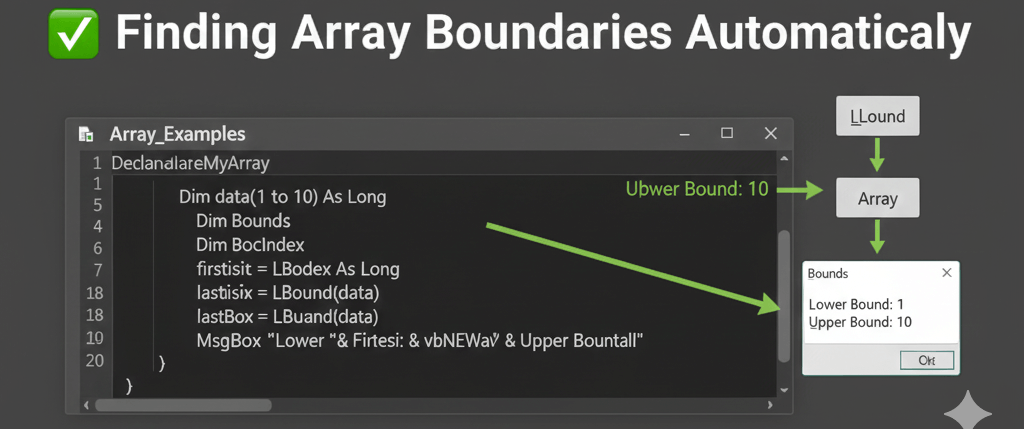
Hardcoding array limits can lead to errors if the size changes.
VBA provides two helpful functions for dynamic handling:
| Function | Description |
|---|---|
LBound(array) | Returns the lowest index |
UBound(array) | Returns the highest index |
・Example:
Sub LoopWithBounds()
Dim i As Long
Dim Values(5 To 10) As Integer
For i = LBound(Values) To UBound(Values)
Values(i) = i * 2
Debug.Print "Index: " & i & " = " & Values(i)
Next i
End Sub
✅ Automatically adapts to any array size.
✅ Ideal for dynamic arrays or future-proof code.
✅ Multidimensional Arrays with For Loops
Arrays can have more than one dimension — useful for representing tables (rows × columns).
・Declaring a two-dimensional array
Dim Matrix(1 To 3, 1 To 4) As Integer
This creates a grid with 3 rows and 4 columns (12 elements in total).
・Example: Nested For loops for 2D arrays
Sub TwoDimensionalLoop()
Dim r As Integer, c As Integer
Dim Matrix(1 To 3, 1 To 4) As Integer
For r = 1 To 3
For c = 1 To 4
Matrix(r, c) = r * c
Next c
Next r
End Sub
✅ Fills each cell with a multiplication result (like a mini multiplication table).
✅ Nested loops are perfect for multi-column data.
Understanding Loops in Excel VBA
・Reading a 2D array
Sub DisplayMatrix()
Dim r As Integer, c As Integer
Dim Matrix(1 To 3, 1 To 3) As Integer
For r = 1 To 3
For c = 1 To 3
Matrix(r, c) = r + c
Debug.Print "Row " & r & ", Col " & c & ": " & Matrix(r, c)
Next c
Next r
End Sub
✅ Outputs each element’s row, column, and value.
✅ A common technique for matrix operations and data tables.
✅ Storing Range Data into an Array
・Example: Load worksheet data into an array
Sub LoadRangeToArray()
Dim Data As Variant
Data = Range("A1:C5").Value
End Sub
✅ Stores the contents of A1:C5 into the Data array.
✅ Each row and column becomes an array index.
✅ Much faster than looping through each cell individually.
・Reading array values with For loops
Sub ReadRangeArray()
Dim Data As Variant
Dim r As Long, c As Long
Data = Range("A1:C5").Value
For r = 1 To UBound(Data, 1)
For c = 1 To UBound(Data, 2)
Debug.Print "Row " & r & ", Col " & c & ": " & Data(r, c)
Next c
Next r
End Sub
✅ Reads all worksheet data stored in memory.
✅ Faster and more efficient than interacting directly with Excel cells.
What Is the “For Each” Loop in VBA?
✅ Writing Array Data Back to Worksheet
Once processed, you can easily output the modified array back to a range.
Sub WriteArrayBack()
Dim Data As Variant
Dim r As Long, c As Long
Data = Range("A1:C5").Value
For r = 1 To UBound(Data, 1)
For c = 1 To UBound(Data, 2)
Data(r, c) = Data(r, c) & "✓"
Next c
Next r
Range("E1:G5").Value = Data
End Sub
✅ Processes data in memory, then writes all results at once.
✅ This “read-process-write” pattern is the gold standard for efficient VBA automation.
✅ Dynamic Arrays with Unknown Size
When you don’t know how many elements your data will have, use a dynamic array.
Sub DynamicArrayExample()
Dim i As Long
Dim Arr() As String
ReDim Arr(1 To 1)
For i = 1 To 10
ReDim Preserve Arr(1 To i)
Arr(i) = "Item " & i
Next i
For i = LBound(Arr) To UBound(Arr)
Debug.Print Arr(i)
Next i
End Sub
✅ Automatically grows as new data is added.
✅ ReDim Preserve keeps previous elements intact.
✅ Excellent for collecting user input or filtered data.
✅ Filtering and Transforming Data in Arrays
・Example: Extract values greater than 50
Sub FilterArray()
Dim i As Long, count As Long
Dim Original() As Variant, Filtered() As Variant
Original = Array(10, 55, 23, 78, 90, 42)
ReDim Filtered(0)
For i = LBound(Original) To UBound(Original)
If Original(i) > 50 Then
count = count + 1
ReDim Preserve Filtered(1 To count)
Filtered(count) = Original(i)
End If
Next i
For i = LBound(Filtered) To UBound(Filtered)
Debug.Print Filtered(i)
Next i
End Sub
✅ Filters values directly in memory — no need for worksheet formulas.
✅ A great example of combining arrays and conditions.
✅ Using For Each with Arrays (Variant Only)
When working with arrays stored in Variant variables, you can also use For Each for simplicity.
Sub ForEachArray()
Dim v As Variant
Dim Numbers As Variant
Numbers = Array(5, 10, 15, 20)
For Each v In Numbers
Debug.Print v
Next v
End Sub
✅ Cleaner syntax for reading all elements.
⚠️ Only works for Variant arrays (not numeric or string arrays).
✅ Real-World Example: Fast Data Processing Using Arrays
Sub FastDataProcessing()
Dim Data As Variant
Dim r As Long
Application.ScreenUpdating = False
Application.Calculation = xlCalculationManual
Data = Range("A1:A10000").Value
For r = 1 To UBound(Data, 1)
If IsNumeric(Data(r, 1)) Then
Data(r, 1) = Data(r, 1) * 1.1
End If
Next r
Range("B1:B10000").Value = Data
Application.Calculation = xlCalculationAutomatic
Application.ScreenUpdating = True
MsgBox "Processing Complete!"
End Sub
✅ Reads 10,000 rows in one operation
✅ Modifies all data in memory
✅ Writes back results instantly
This approach can be 100× faster than traditional cell-by-cell loops.
✅ Error Handling in Array Loops
When processing large arrays, errors like “subscript out of range” may occur.
Add simple error control to make your code robust.
On Error Resume Next
'Your For loop here
On Error GoTo 0
Or, explicitly check array size before looping:
If IsArray(Data) Then
For i = LBound(Data) To UBound(Data)
'Process
Next i
End If
✅ Prevents unexpected crashes in dynamic environments.
✅ Common Mistakes and Solutions
| Mistake | Cause | Fix |
|---|---|---|
Using For Each on non-Variant arrays | Only Variant arrays support it | Use traditional For loops |
Forgetting ReDim Preserve | Resets data when resizing | Add Preserve keyword |
| Out of range errors | Wrong loop bounds | Always use LBound and UBound |
| Slow performance | Direct cell looping | Load data into arrays first |
| Memory overflow | Large array kept in memory | Clear arrays after use: Erase ArrayName |
✅ Performance Optimization Tips
✔ Disable screen updating during large array operations
✔ Avoid resizing arrays inside loops whenever possible
✔ Process data in memory — read and write only once
✔ Use Variant arrays when working with mixed data types
✔ Erase arrays when finished to release memory
These techniques make your VBA macros smooth and professional.
✅ Summary:Mastering For Loops with Arrays in Excel VBA
- Arrays store multiple values efficiently for fast processing.
- Combine
Forloops with arrays to manipulate data dynamically. - Use
LBoundandUBoundfor flexible iteration. - Work with multidimensional arrays for table-like data.
- Read from and write to worksheets in bulk for speed.
- Always optimize performance with screen updates off.
By mastering For loops with arrays, you’ll move from basic VBA scripting to advanced, enterprise-level automation — capable of handling complex datasets with speed, reliability, and precision.