
How to Use AND Conditions in IF Statements in Excel VBA: Syntax, Examples, and Practical Applications
Contents
- How to Use AND Conditions in IF Statements in Excel VBA: Syntax, Examples, and Practical Applications
- ✅ What Is the AND Operator in VBA?
- ✅ Understanding How VBA Evaluates AND Conditions
- ✅ Step 1: Using a Simple AND in an IF Statement
- ✅ Step 2: Combining Three or More Conditions
- ✅ Step 3: Using Parentheses for Clarity
- ✅ Step 4: Combining AND with OR
- ✅ Step 5: Using AND to Check Numeric Ranges
- ✅ Step 6: Combining Text and Number Conditions
- ✅ Step 7: Using AND with Date Comparisons
- ✅ Step 8: Multi-Cell AND Checks in Loops
- ✅ Step 9: Using Boolean Variables to Simplify AND Logic
- ✅ Step 10: Short-Circuit Optimization in Practice
- ✅ Step 11: Combining AND with NOT
- ✅ Step 12: Handling Empty or Missing Data Safely
- ✅ Step 13: Using AND in Nested IF Statements
- ✅ Step 14: Using AND with String Searches (InStr)
- ✅ Step 15: AND Logic in Real-World Approval Scenarios
- ✅ Step 16: Error Prevention – When AND Fails
- ✅ Step 17: Using AND in Functions (Return Logic)
- ✅ Step 18: Integrating AND Logic in RPA Processes
- ✅ Step 19: Performance Considerations
- ✅ Step 20: Full Example – Professional-Grade Macro with AND Logic
- ✅ Summary: Mastering AND Logic in VBA
Conditional logic is one of the most powerful tools in Excel VBA.
Among all logical operators, the AND operator is especially useful when you want multiple conditions to be true at the same time before executing a block of code.
For example, you might want a macro to run only if a sales value is above 10,000 and the region is “East”.
By combining multiple checks with AND, you can control your VBA program flow precisely and avoid unnecessary errors or actions.
This guide explains how to use AND in IF statements — from the basic syntax to complex multi-condition logic — and how to apply it in real-world business automation.
✅ What Is the AND Operator in VBA?

The AND operator in VBA is a logical connector that returns True only if all the specified conditions evaluate to True.
If any of the conditions are False, the entire AND expression becomes False.
・Basic structure
If condition1 And condition2 Then
' Code runs only if both are True
End If
・Example
If Range("A1").Value > 100 And Range("B1").Value = "Sales" Then
MsgBox "Sales target achieved!"
End If
✅ This message appears only when both conditions are true:
- A1 is greater than 100
- B1 equals “Sales”
If either fails, VBA skips the message.
✅ Understanding How VBA Evaluates AND Conditions
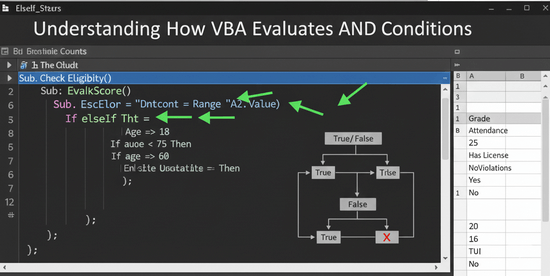
When using AND, VBA evaluates each condition from left to right.
The final result is True only if all parts evaluate to True.
| Condition 1 | Condition 2 | Result (A And B) |
|---|---|---|
| True | True | True |
| True | False | False |
| False | True | False |
| False | False | False |
✅ Important note: As soon as VBA finds one False condition, it still continues to evaluate the remaining ones — unlike some languages that short-circuit.
Therefore, each expression must be valid (for example, avoid checking .Value on a blank range).
✅ Step 1: Using a Simple AND in an IF Statement
・Example 1: Checking Two Conditions
If Range("A1").Value > 100 And Range("B1").Value = "Sales" Then
MsgBox "Qualified record"
End If
✅ The message appears only when both are true — otherwise, VBA does nothing.
✅ Step 2: Combining Three or More Conditions
You can extend AND logic to include multiple conditions.
・Example 2: Three conditions
If Range("A1").Value > 100 And Range("B1").Value = "Sales" And Range("C1").Value = "Approved" Then
MsgBox "Record is valid and approved"
End If
✅ The code runs only if all three checks are true.
If any one condition fails, the entire block is skipped.
✅ Step 3: Using Parentheses for Clarity
When you combine multiple AND conditions, always use parentheses to control evaluation order and improve readability.
・Example
If (Range("A1").Value > 100 And Range("B1").Value = "Sales") And Range("C1").Value = "Approved" Then
MsgBox "Valid sales record"
End If
✅ Parentheses make complex logic easier to read and debug — especially when mixed with OR later.
✅ Step 4: Combining AND with OR
You can mix AND and OR in the same IF statement, but parentheses are essential to ensure correct results.
・Example
If (Range("A1").Value > 100 And Range("B1").Value = "Sales") Or Range("C1").Value = "Marketing" Then
MsgBox "Qualified department"
End If
✅ This reads as:
If (Sales above 100 and department is Sales) OR if department is Marketing → then run the code.
Without parentheses, VBA might evaluate incorrectly.
How to Combine AND and OR Conditions in IF Statements in Excel VBA
✅ Step 5: Using AND to Check Numeric Ranges
A common use case is validating whether a number falls within a specific range.
・Example
If Range("A1").Value >= 50 And Range("A1").Value <= 100 Then
MsgBox "Score is within the acceptable range"
End If
✅ This ensures the number is between 50 and 100, inclusive.
✅ Step 6: Combining Text and Number Conditions
You can mix data types in your AND statements easily.
・Example
If Range("A1").Value = "Finance" And Range("B1").Value > 10000 Then
MsgBox "Finance department exceeds budget threshold"
End If
✅ Works perfectly for mixed comparisons — text and numbers together.
✅ Step 7: Using AND with Date Comparisons
Dates are fully supported in VBA logic when combined with AND.
・Example
If Range("A1").Value >= #1/1/2025# And Range("A1").Value <= #12/31/2025# Then
MsgBox "Date is within the 2025 fiscal year"
End If
✅ This is a clean way to validate date ranges — useful for reporting automation or time-based tasks.
✅ Step 8: Multi-Cell AND Checks in Loops
AND logic becomes powerful when looping through data rows.
・Example
Sub ValidateRows()
Dim i As Long
For i = 2 To 50
If Cells(i, 1).Value <> "" And Cells(i, 2).Value > 100 And Cells(i, 3).Value = "Yes" Then
Cells(i, 4).Value = "Approved"
Else
Cells(i, 4).Value = "Rejected"
End If
Next i
End Sub
✅ This checks each row for multiple conditions and marks “Approved” or “Rejected” accordingly.
Perfect for batch validation tasks.
✅ Step 9: Using Boolean Variables to Simplify AND Logic
When you have many AND conditions, readability can suffer.
To clean up your code, store conditions in Boolean variables first.
・Example
Dim isDeptSales As Boolean, isTargetMet As Boolean, isApproved As Boolean
isDeptSales = (Range("B1").Value = "Sales")
isTargetMet = (Range("A1").Value > 100)
isApproved = (Range("C1").Value = "Yes")
If isDeptSales And isTargetMet And isApproved Then
MsgBox "Sales record confirmed"
End If
✅ This approach is highly readable and easy to maintain — especially in long VBA projects.
✅ Step 10: Short-Circuit Optimization in Practice
Unlike some languages (like Python or JavaScript), VBA evaluates every condition, even if one is already False.
Therefore, you should order conditions from simplest to most efficient.
・Example
If Range("A1").Value <> "" And WorksheetFunction.IsNumber(Range("A1").Value) And Range("A1").Value > 50 Then
MsgBox "Valid number"
End If
✅ The first condition checks for blank cells first — preventing unnecessary errors in later numeric checks.
✅ Step 11: Combining AND with NOT
To exclude a condition, add Not before it.
・Example
If Range("A1").Value = "Sales" And Not Range("B1").Value = "Inactive" Then
MsgBox "Active sales record"
End If
✅ “Not” reverses the logic — so this checks for Sales department records that are not inactive.
✅ Step 12: Handling Empty or Missing Data Safely
Blank cells can cause unexpected results if not handled properly.
・Example
If Trim(Range("A1").Value) <> "" And Range("B1").Value > 0 Then
MsgBox "Valid entry"
Else
MsgBox "Incomplete data"
End If
✅ Trim removes spaces, ensuring truly blank detection.
How to Use IF Statements in Excel VBA to Run the Next Process When a Cell Is Blank
✅ Step 13: Using AND in Nested IF Statements
You can combine AND conditions inside nested IF structures for layered decisions.
・Example
If Range("A1").Value = "Sales" Then
If Range("B1").Value > 1000 And Range("C1").Value = "Approved" Then
MsgBox "Qualified Sales Transaction"
End If
End If
✅ Nesting allows you to handle complex multi-level logic systematically.
✅ Step 14: Using AND with String Searches (InStr)
When searching for partial text, combine InStr with AND.
・Example
If InStr(1, Range("A1").Value, "refund", vbTextCompare) > 0 And _
InStr(1, Range("A1").Value, "customer", vbTextCompare) > 0 Then
MsgBox "Customer refund case"
End If
✅ Both keywords must exist within the same text cell for this to trigger.
✅ Step 15: AND Logic in Real-World Approval Scenarios
Let’s simulate a realistic business rule.
Approve an order if:
- Region = “East”
- Amount > 5,000
- Status = “Confirmed”
・Example
Sub ApproveOrders()
Dim i As Long
For i = 2 To 100
If Cells(i, 1).Value = "East" And Cells(i, 2).Value > 5000 And Cells(i, 3).Value = "Confirmed" Then
Cells(i, 4).Value = "Approved"
Else
Cells(i, 4).Value = "Pending"
End If
Next i
End Sub
✅ This logic is frequently used in accounting, inventory management, and RPA data validation.
✅ Step 16: Error Prevention – When AND Fails
Common mistakes:
- Missing
End If - Using
=instead ofAnd - Forgetting parentheses
- Comparing text with numbers
- No blank-cell handling
・Example of incorrect code
If Range("A1").Value > 100 And Range("B1") Then
✅ Wrong: The second part isn’t a full condition — must compare something like Range("B1").Value = "Yes".
✅ Step 17: Using AND in Functions (Return Logic)
You can apply AND conditions inside custom functions too.
・Example
Function IsQualified(dept As String, score As Double, approved As String) As Boolean
IsQualified = (dept = "Sales" And score > 80 And approved = "Yes")
End Function
Then use it like:
If IsQualified(Range("A1").Value, Range("B1").Value, Range("C1").Value) Then
MsgBox "Qualified"
End If
✅ Clean, reusable, and modular — perfect for complex rules.
✅ Step 18: Integrating AND Logic in RPA Processes
When combining VBA with UiPath or Power Automate, AND logic helps define workflow branches clearly.
・Example
- UiPath writes form values into Excel.
- VBA checks if “Amount > 1000” and “Status = Complete”.
- If both True, VBA sets “Ready for Upload”, which UiPath reads next.
✅ This approach ensures stable, rule-based handoff between systems.
✅ Step 19: Performance Considerations
AND conditions are lightweight but can impact speed if used inside large loops (tens of thousands of rows).
Tips for optimization:
- Read values into variables before comparing.
- Evaluate simple conditions first.
- Use
Exit Forwhen criteria are met. - Avoid redundant cell reads (they’re slow).
・Example (optimized)
Dim amount As Double, status As String
amount = Cells(i, 2).Value
status = Cells(i, 3).Value
If amount > 5000 And status = "Approved" Then
✅ Reading once improves speed dramatically in bulk-processing macros.
✅ Step 20: Full Example – Professional-Grade Macro with AND Logic
Here’s a complete example combining all the principles above.
Sub ValidateApplications()
Dim i As Long
Dim dept As String, score As Double, approved As String
Dim isDeptValid As Boolean, isScoreValid As Boolean, isApproved As Boolean
For i = 2 To 200
dept = Cells(i, 1).Value
score = Cells(i, 2).Value
approved = Cells(i, 3).Value
isDeptValid = (dept = "Sales" Or dept = "Marketing")
isScoreValid = (score >= 70 And score <= 100)
isApproved = (approved = "Yes")
If isDeptValid And isScoreValid And isApproved Then
Cells(i, 4).Value = "Approved"
Else
Cells(i, 4).Value = "Rejected"
End If
Next i
MsgBox "Validation complete."
End Sub
✅ This macro handles multi-column logic using ANDs cleanly and efficiently.
It’s suitable for reporting, HR forms, or financial reviews.
✅ Summary: Mastering AND Logic in VBA
| Concept | Description |
|---|---|
| Purpose | To ensure multiple conditions are true simultaneously |
| Syntax | If condition1 And condition2 Then |
| Combination | Use parentheses with OR for mixed logic |
| Best Practice | Use Boolean variables for clarity |
| Error Prevention | Always check blanks and data types |
| Performance Tip | Read cells into variables before comparisons |
Key Takeaways:
ANDis essential for multi-condition decision-making in VBA.- Parentheses are your best friend for clarity and accuracy.
- Combine with
OR,NOT, orInStrfor advanced filtering. - Use Boolean variables to make complex logic human-readable.
- Integrate with automation tools for scalable workflows.
By mastering AND conditions in your If statements, you’ll write cleaner, smarter, and more professional VBA code that scales effortlessly — from daily Excel reports to enterprise-level RPA solutions.