
In real-world business automation using Excel VBA, one of the most powerful techniques involves combining For loops with arrays to transfer data based on matching field names (or “headers”).
This approach enables you to build dynamic, adaptable macros that don’t break when the column order changes — a problem that often frustrates beginners.
In this detailed guide, you’ll learn how to use a For loop with arrays to transfer data according to field names, a method widely used in practical systems integration, reporting automation, and template-based data migration.
✅ Why Use Arrays for Header-Based Data Transfer?
Contents
- ✅ Why Use Arrays for Header-Based Data Transfer?
- ✅ Concept Overview: “Match Header → Copy Data”
- ✅ Step 1: Preparing Sample Data
- ✅ Step 2: Outline of the VBA Logic
- ✅ Step 3: Declaring Variables and Arrays
- ✅ Step 4: Load Headers and Data
- ✅ Step 5: Matching Headers with Nested For Loops
- ✅ Step 6: Copy Data When Header Matches
- ✅ Full Working Code Example
- ✅ Step 7: Improve Performance Using Arrays for Data Transfer
- ✅ Step 8: Handling Missing or Extra Fields Gracefully
- ✅ Step 9: Adding Flexible Matching (Case-Insensitive)
- ✅ Step 10: Adding Performance Enhancements
- ✅ Step 11: Logging and Confirmation
- ✅ Practical Business Use Cases
- ✅ Common Mistakes and How to Avoid Them
- ✅ Advanced Tips for Enterprise-Level Projects
- ✅ Summary:Mastering Header-Based Data Transfer Using Arrays and For Loops
・The problem with fixed column references
Many beginners write code like:
Cells(i, 2).Value = Cells(i, 5).Value
But what if the column order changes?
Your macro breaks immediately because the hardcoded references no longer point to the right data.
・The professional solution
Instead of hardcoding columns, store header names (field names) in an array, find their positions dynamically, and then use a For loop to copy or map data accordingly.
This allows your macro to:
- Automatically adapt when column orders change
- Work across multiple templates
- Avoid maintenance headaches when files are updated
This is a real-world business-level automation approach — robust, dynamic, and maintainable.
✅ Concept Overview: “Match Header → Copy Data”
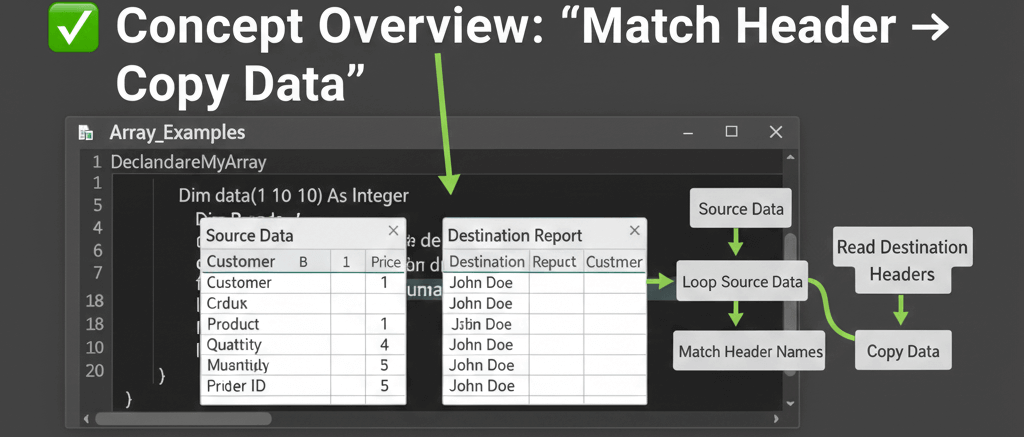
Imagine you have two worksheets:
- Sheet1: Source data (e.g., exported from a system)
- Sheet2: Template sheet with different column order
Your goal:
Copy each field (e.g., “Employee Name”, “Department”, “Salary”) from Sheet1 to Sheet2 based on matching headers, regardless of their column positions.
✅ Step 1: Preparing Sample Data
Sheet1 (Source Data):
| Employee Name | Salary | Department |
|---|---|---|
| John | 5000 | Sales |
| Lisa | 4800 | HR |
| Alex | 5200 | IT |
Sheet2 (Destination Template):
| Department | Employee Name | Salary |
|---|
The order of headers differs — a typical scenario in real Excel workflows.
✅ Step 2: Outline of the VBA Logic
- Read the header names from both sheets into arrays
- Loop through the destination headers
- Find the matching source column index
- Copy corresponding values row by row
This approach ensures perfect alignment between columns by name — not position.
✅ Step 3: Declaring Variables and Arrays
Sub CopyDataByHeader()
Dim srcWs As Worksheet, dstWs As Worksheet
Dim srcHeaders As Variant, dstHeaders As Variant
Dim srcLastRow As Long, srcLastCol As Long
Dim dstLastCol As Long
Dim i As Long, j As Long, r As Long
Dim matchCol As Long
srcWs/dstWs: define source and destination worksheetssrcHeaders/dstHeaders: arrays storing the header namesmatchCol: temporary variable for matching columns
Handling Exact String Match in IF Statements in Excel VBA
✅ Step 4: Load Headers and Data
    Set srcWs = ThisWorkbook.Sheets("Sheet1")
Set dstWs = ThisWorkbook.Sheets("Sheet2")
srcLastRow = srcWs.Cells(srcWs.Rows.Count, 1).End(xlUp).Row
srcLastCol = srcWs.Cells(1, srcWs.Columns.Count).End(xlToLeft).Column
dstLastCol = dstWs.Cells(1, dstWs.Columns.Count).End(xlToLeft).Column
srcHeaders = srcWs.Range(srcWs.Cells(1, 1), srcWs.Cells(1, srcLastCol)).Value
dstHeaders = dstWs.Range(dstWs.Cells(1, 1), dstWs.Cells(1, dstLastCol)).Value
✅ This reads the first row from each sheet (headers) into arrays.
✅ srcLastRow and srcLastCol dynamically detect the range size.
✅ Step 5: Matching Headers with Nested For Loops
    For j = 1 To dstLastCol
matchCol = 0
For i = 1 To srcLastCol
If dstHeaders(1, j) = srcHeaders(1, i) Then
matchCol = i
Exit For
End If
Next i
✅ For each destination header, find its corresponding column in the source header array.
✅ When a match is found, store the column index.
Understanding Nested For Loops in VBA
✅ Step 6: Copy Data When Header Matches
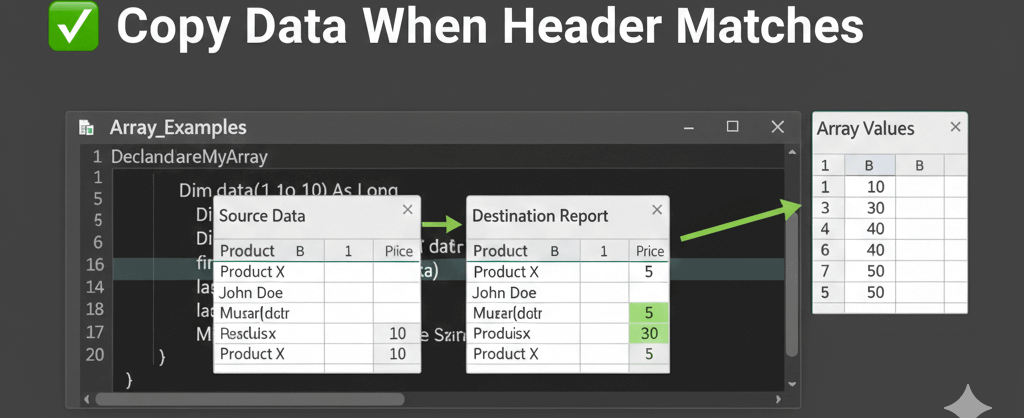
        If matchCol > 0 Then
For r = 2 To srcLastRow
dstWs.Cells(r, j).Value = srcWs.Cells(r, matchCol).Value
Next r
End If
Next j
End Sub
✅ Only copies when a valid match is found (matchCol > 0).
✅ Loops through all rows and transfers data accurately, by name.
✅ Full Working Code Example
Sub CopyDataByHeader()
Dim srcWs As Worksheet, dstWs As Worksheet
Dim srcHeaders As Variant, dstHeaders As Variant
Dim srcLastRow As Long, srcLastCol As Long
Dim dstLastCol As Long
Dim i As Long, j As Long, r As Long
Dim matchCol As Long
Set srcWs = ThisWorkbook.Sheets("Sheet1")
Set dstWs = ThisWorkbook.Sheets("Sheet2")
srcLastRow = srcWs.Cells(srcWs.Rows.Count, 1).End(xlUp).Row
srcLastCol = srcWs.Cells(1, srcWs.Columns.Count).End(xlToLeft).Column
dstLastCol = dstWs.Cells(1, dstWs.Columns.Count).End(xlToLeft).Column
srcHeaders = srcWs.Range(srcWs.Cells(1, 1), srcWs.Cells(1, srcLastCol)).Value
dstHeaders = dstWs.Range(dstWs.Cells(1, 1), dstWs.Cells(1, dstLastCol)).Value
For j = 1 To dstLastCol
matchCol = 0
For i = 1 To srcLastCol
If dstHeaders(1, j) = srcHeaders(1, i) Then
matchCol = i
Exit For
End If
Next i
If matchCol > 0 Then
For r = 2 To srcLastRow
dstWs.Cells(r, j).Value = srcWs.Cells(r, matchCol).Value
Next r
End If
Next j
MsgBox "Data transfer completed successfully!", vbInformation
End Sub
✅ 100% dynamic — works even if column positions change.
✅ Ideal for importing data between systems or templates.
✅ Real-world level performance and reliability.
✅ Step 7: Improve Performance Using Arrays for Data Transfer
While the previous code works, it still reads and writes cell by cell.
You can make it 10x faster by loading data into arrays first, processing in memory, and writing results at once.
・Optimized version using array-to-array transfer
Sub CopyDataByHeader_ArrayOptimized()
Dim srcWs As Worksheet, dstWs As Worksheet
Dim srcHeaders As Variant, dstHeaders As Variant
Dim srcData As Variant, dstData As Variant
Dim srcLastRow As Long, srcLastCol As Long, dstLastCol As Long
Dim i As Long, j As Long, r As Long, matchCol As Long
Set srcWs = ThisWorkbook.Sheets("Sheet1")
Set dstWs = ThisWorkbook.Sheets("Sheet2")
srcLastRow = srcWs.Cells(srcWs.Rows.Count, 1).End(xlUp).Row
srcLastCol = srcWs.Cells(1, srcWs.Columns.Count).End(xlToLeft).Column
dstLastCol = dstWs.Cells(1, dstWs.Columns.Count).End(xlToLeft).Column
srcHeaders = srcWs.Range(srcWs.Cells(1, 1), srcWs.Cells(1, srcLastCol)).Value
dstHeaders = dstWs.Range(dstWs.Cells(1, 1), dstWs.Cells(1, dstLastCol)).Value
srcData = srcWs.Range(srcWs.Cells(2, 1), srcWs.Cells(srcLastRow, srcLastCol)).Value
ReDim dstData(1 To UBound(srcData, 1), 1 To dstLastCol)
For j = 1 To dstLastCol
matchCol = 0
For i = 1 To srcLastCol
If dstHeaders(1, j) = srcHeaders(1, i) Then
matchCol = i
Exit For
End If
Next i
If matchCol > 0 Then
For r = 1 To UBound(srcData, 1)
dstData(r, j) = srcData(r, matchCol)
Next r
End If
Next j
dstWs.Range("A2").Resize(UBound(dstData, 1), UBound(dstData, 2)).Value = dstData
MsgBox "Array-based data transfer completed!", vbInformation
End Sub
✅ Reads all data at once
✅ Processes entirely in memory
✅ Writes back in a single operation — lightning fast
This approach can handle tens of thousands of rows efficiently.
✅ Step 8: Handling Missing or Extra Fields Gracefully
In real business templates, sometimes headers don’t match perfectly.
You can handle this gracefully by checking for missing headers.
If matchCol = 0 Then
Debug.Print "Warning: Header '" & dstHeaders(1, j) & "' not found in source sheet."
End If
✅ Displays warnings for unmatched headers in the Immediate Window.
✅ Prevents crashes or misaligned data transfer.
✅ Step 9: Adding Flexible Matching (Case-Insensitive)
Header names might have inconsistent capitalization.
You can fix that easily using LCase():
If LCase(dstHeaders(1, j)) = LCase(srcHeaders(1, i)) Then
✅ Makes header matching case-insensitive, ensuring smoother transfers between templates.
✅ Step 10: Adding Performance Enhancements
Always use these performance boosters for large-scale macros:
Application.ScreenUpdating = False
Application.Calculation = xlCalculationManual
Application.EnableEvents = False
At the end, re-enable them:
Application.ScreenUpdating = True
Application.Calculation = xlCalculationAutomatic
Application.EnableEvents = True
✅ Reduces flicker and boosts speed dramatically.
✅ Essential for business-level automation.
✅ Step 11: Logging and Confirmation
After the transfer, always provide user feedback and optional logging.
MsgBox "Data transfer completed for " & UBound(srcData, 1) & " records.", vbInformation
✅ Professional macros always inform users clearly.
✅ Improves reliability and transparency in business operations.
✅ Practical Business Use Cases
| Scenario | Description | Example |
|---|---|---|
| Template update | Import data from an old Excel format into a new report format | HR payroll forms, financial templates |
| Multi-system integration | Map data between systems with different field orders | Sales export → ERP upload |
| Error-free report automation | Generate reports with consistent column structure | Department KPI summary |
| Data consolidation | Merge data from different sources by header name | Regional sales aggregation |
This array-based method is the industry standard for professional Excel VBA automation.
✅ Common Mistakes and How to Avoid Them
| Mistake | Cause | Fix |
|---|---|---|
| Using hardcoded column numbers | Columns shift or update | Always match by header name |
| Copying cell-by-cell without arrays | Poor performance | Process data in memory |
| Case-sensitive header comparison | Different capitalizations | Use LCase() for matching |
| Mismatched header counts | Source and destination differ | Add validation and logging |
Forgetting ReDim Preserve | Data loss when resizing | Use Preserve to keep content |
✅ Advanced Tips for Enterprise-Level Projects
✔ Build reusable header mapping functions
✔ Log unmatched headers for audit trails
✔ Add optional field aliasing (e.g., “EmpName” = “Employee Name”)
✔ Combine with dictionaries for faster lookups
✔ Export reports dynamically with standardized structures
These enhancements turn your VBA macro into a robust, production-grade automation tool.
✅ Summary:Mastering Header-Based Data Transfer Using Arrays and For Loops
- Use
Forloops with arrays to transfer data dynamically based on header names - Avoid hardcoding column numbers for reliability
- Process in memory for speed and scalability
- Handle case-insensitive matching and missing headers gracefully
- Apply performance enhancements (
ScreenUpdating,Calculation) - Ideal for HR, finance, and reporting automations
By mastering this header-based data transfer technique, you can build VBA macros that behave like professional ETL systems — fast, adaptable, and ready for real-world enterprise use.