
When writing Excel VBA macros, one of the most important concepts to master is loop control — particularly, knowing how and when to exit a loop.
While Exit For works perfectly for a single loop, developers often struggle when dealing with nested (multiple) For loops.
The main question is:
How can you exit multiple levels of loops (nested loops) properly when using
Exit For?
This article provides a complete explanation of how Exit For behaves in nested loops, how to control it safely, and the most effective patterns used in real business-level VBA automation.
✅ What Is Exit For in VBA?
Contents
- ✅ What Is Exit For in VBA?
- ✅ What Happens When Exit For Is Nested
- ✅ Understanding “Nested For” (For Inside For)
- ✅ Method 1: Use a “Flag Variable” to Exit Both Loops
- ✅ Method 2: Use “GoTo” for Direct Exit
- ✅ Method 3: Exit Entire Subroutine (Exit Sub)
- ✅ Method 4: Nested Loops With Multiple Exit For Levels (Controlled Stop)
- ✅ Method 5: Use a Custom Function to Encapsulate the Inner Loop
- ✅ Common Mistakes When Using Exit For in Nested Loops
- ✅ Example: Real-World Data Search Scenario
- ✅ Example: Comparing Two Sheets and Breaking at First Mismatch
- ✅ Example: Multi-Sheet Data Processing with Conditional Exit
- ✅ Performance Tips When Using Nested Loops with Exit For
- ✅ Comparing Different Loop Exit Techniques
- ✅ Summary: Mastering Exit For in Nested Loops
・Definition
Exit For is a loop control statement in VBA that allows you to immediately terminate a For…Next loop before it naturally finishes its iterations.
・Basic Syntax
Exit For
When Exit For is executed, VBA skips any remaining code in that loop and continues execution after the corresponding Next statement.
・Simple Example
Sub ExitForExample()
Dim i As Long
For i = 1 To 10
If Cells(i, 1).Value = "Stop" Then Exit For
Debug.Print "Row " & i
Next i
MsgBox "Loop stopped at row: " & i
End Sub
✅ Once the cell contains “Stop”, the loop immediately ends — even if the upper limit was 10.
✅ This is the most common and cleanest way to exit a loop in VBA.
✅ What Happens When Exit For Is Nested
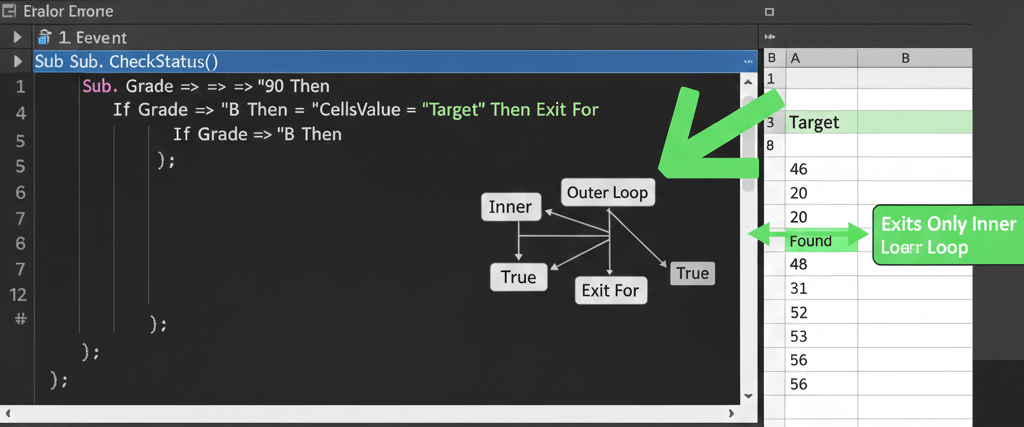
When you use multiple For loops (nested loops), each loop maintains its own independent scope.
Therefore, a single Exit For statement only terminates the innermost loop — not all levels.
・Example: Nested For Without Proper Exit
Sub NestedLoopExample()
Dim i As Long, j As Long
For i = 1 To 3
For j = 1 To 3
If j = 2 Then Exit For
Debug.Print "i=" & i & ", j=" & j
Next j
Next i
End Sub
✅ Output:
i=1, j=1
i=2, j=1
i=3, j=1
Even though Exit For is executed when j = 2,
it only exits the inner loop, not the outer one.
The outer loop (i) continues to the next iteration.
✅ Understanding “Nested For” (For Inside For)
・Structure Overview
A nested loop allows one loop to run inside another.
The outer loop might represent rows, and the inner one might represent columns.
For i = 1 To 10    ' Outer loop
For j = 1 To 5 ' Inner loop
' Process each cell
Next j
Next i
In this pattern:
- The inner loop executes fully for each iteration of the outer loop.
- To exit both loops, a single
Exit Foris not enough.
Let’s explore how to control this properly.
✅ Method 1: Use a “Flag Variable” to Exit Both Loops
This is the most reliable and professional method to break out of nested loops.
You use a Boolean variable (a flag) that signals when both loops should stop.
・Example: Exit Both Loops Using a Flag
Sub ExitNestedLoopWithFlag()
Dim i As Long, j As Long
Dim exitAll As Boolean
For i = 1 To 5
For j = 1 To 5
If Cells(i, j).Value = "Target" Then
exitAll = True
Exit For
End If
Next j
If exitAll Then Exit For
Next i
MsgBox "Exited at Row: " & i & ", Column: " & j
End Sub
✅ Explanation:
- When the target is found, the flag
exitAllis set toTrue. - The inner loop exits immediately.
- The outer loop checks
exitAlland also exits.
✅ Advantages:
- Clean and predictable.
- Works for any number of nested levels.
- Easy to maintain and extend.
✅ Method 2: Use “GoTo” for Direct Exit
While GoTo should be used cautiously, it’s often the most concise way to break out of multiple loops.
・Example: GoTo for Immediate Exit
Sub ExitNestedLoopGoTo()
Dim i As Long, j As Long
For i = 1 To 5
For j = 1 To 5
If Cells(i, j).Value = "Stop" Then
GoTo ExitAll
End If
Next j
Next i
ExitAll:
MsgBox "Exited both loops at Row: " & i & ", Col: " & j
End Sub
✅ The GoTo statement jumps directly to the label ExitAll:.
✅ This bypasses all remaining loops.
✅ It’s fast, compact, and easy to read for short macros.
⚠️ However, use it carefully in large codebases — excessive labels can hurt readability.
Understanding and Using the GoTo Statement in VBA: Complete Guide for Excel Automation
✅ Method 3: Exit Entire Subroutine (Exit Sub)
If your only goal is to stop everything once a condition is met, you can use Exit Sub.
It immediately ends the entire procedure, not just the loop.
・Example: Exit Sub After Match
Sub ExitSubExample()
Dim i As Long, j As Long
For i = 1 To 5
For j = 1 To 5
If Cells(i, j).Value = "Found" Then
MsgBox "Found at (" & i & "," & j & ")"
Exit Sub
End If
Next j
Next i
End Sub
✅ As soon as “Found” is detected, the entire macro stops.
✅ Simple, clean, and ideal when no further code execution is needed.
✅ Method 4: Nested Loops With Multiple Exit For Levels (Controlled Stop)
When multiple nested loops exist, you can layer several Exit For statements in sequence.
・Example: Double Exit Logic
Sub MultiExitExample()
Dim i As Long, j As Long, k As Long
Dim exitFlag As Boolean
For i = 1 To 3
For j = 1 To 3
For k = 1 To 3
If Cells(i, j).Value = "Target" Then
exitFlag = True
Exit For
End If
Next k
If exitFlag Then Exit For
Next j
If exitFlag Then Exit For
Next i
End Sub
✅ Each level has its own Exit For condition controlled by the same flag.
✅ Works even for triple-nested structures.
✅ No GoTo, clean and maintainable.
✅ Method 5: Use a Custom Function to Encapsulate the Inner Loop
Another elegant way is to separate the inner loop into a function that returns True when a condition is met.
This allows you to keep the logic modular.
・Example
Sub OuterLoop()
Dim i As Long
For i = 1 To 10
If CheckInnerLoop(i) Then Exit For
Next i
MsgBox "Stopped at outer row " & i
End Sub
Function CheckInnerLoop(i As Long) As Boolean
Dim j As Long
For j = 1 To 10
If Cells(i, j).Value = "Stop" Then
CheckInnerLoop = True
Exit For
End If
Next j
End Function
✅ The outer loop simply checks if the function returns True.
✅ This keeps the structure clean and professional.
✅ Highly reusable across modules.
✅ Common Mistakes When Using Exit For in Nested Loops
| Mistake | Explanation | Solution |
|---|---|---|
Expecting Exit For to stop both loops | It only stops one level | Use flag or GoTo |
| Forgetting to reset flag variable | Causes false exits in next iterations | Always initialize before loops |
Using GoTo excessively | Makes code harder to trace | Use sparingly |
| Not knowing which loop exited | Can confuse debugging | Track via message or debug output |
Omitting Exit For entirely | Infinite or inefficient loops | Always add safety conditions |
✅ Always structure your loop exits intentionally — not accidentally.
✅ Example: Real-World Data Search Scenario
Imagine searching for a specific ID inside a table that spans multiple sheets.
Here’s a practical use case for nested Exit For.
・Example: Search Across Sheets and Stop at Match
Sub SearchAcrossSheets()
Dim ws As Worksheet
Dim r As Long, found As Boolean
For Each ws In ThisWorkbook.Worksheets
For r = 2 To ws.Cells(ws.Rows.Count, 1).End(xlUp).Row
If ws.Cells(r, 1).Value = "INV-123" Then
MsgBox "Found in " & ws.Name & " at Row " & r
found = True
Exit For
End If
Next r
If found Then Exit For
Next ws
End Sub
✅ The loop exits both the row loop and the worksheet loop once a match is found.
✅ Perfect for workbook-wide searches.
✅ Prevents redundant scanning.
✅ Example: Comparing Two Sheets and Breaking at First Mismatch
This is a classic validation scenario where you compare two datasets line by line and stop when differences appear.
Sub CompareSheets()
Dim i As Long, j As Long
Dim ws1 As Worksheet, ws2 As Worksheet
Dim stopAll As Boolean
Set ws1 = Sheets("Data1")
Set ws2 = Sheets("Data2")
For i = 1 To 100
For j = 1 To 10
If ws1.Cells(i, j).Value <> ws2.Cells(i, j).Value Then
MsgBox "Mismatch at Row " & i & ", Column " & j
stopAll = True
Exit For
End If
Next j
If stopAll Then Exit For
Next i
End Sub
✅ Efficient for verifying data integrity.
✅ Stops processing immediately on the first error.
✅ Saves time in large-scale data reconciliation.
✅ Example: Multi-Sheet Data Processing with Conditional Exit
Sometimes you want to exit nested loops only when a critical error occurs, but continue otherwise.
Sub ProcessSheetsWithSafetyExit()
Dim ws As Worksheet
Dim r As Long, hasError As Boolean
On Error Resume Next
For Each ws In ThisWorkbook.Worksheets
For r = 2 To 50
If ws.Cells(r, 1).Value = "" Then
hasError = True
Exit For
End If
ws.Cells(r, 2).Value = ws.Cells(r, 1).Value * 2
Next r
If hasError Then Exit For
Next ws
On Error GoTo 0
If hasError Then
MsgBox "Error encountered in " & ws.Name
Else
MsgBox "Process completed successfully."
End If
End Sub
✅ Uses a controlled exit without crashing the macro.
✅ Ensures clean termination under unexpected input.
✅ Performance Tips When Using Nested Loops with Exit For
- Use
Exit Forearly to minimize unnecessary iterations - Always disable screen updates during loops:
Application.ScreenUpdating = False - Process data in arrays rather than directly on cells when possible
- Avoid deeply nested loops (consider dictionary or collection objects instead)
- Re-enable updates at the end:
Application.ScreenUpdating = True
✅ Optimizing your loop structure can improve speed by 10x or more for large data.
✅ Comparing Different Loop Exit Techniques
| Technique | Scope | Cleanliness | Ideal Use Case |
|---|---|---|---|
Exit For | Single loop | ✅ Very clean | Simple conditions |
| Boolean flag | Multiple loops | ✅ Recommended | Nested logic |
GoTo | Multiple loops | ⚠️ Simple but risky | Quick scripts |
Exit Sub | Whole procedure | ✅ Simple | Full termination |
| Function return | Controlled logic | ✅ Professional | Modular code |
✅ Use Boolean flags or function returns for most production-level VBA scripts.
✅ Summary: Mastering Exit For in Nested Loops
Exit Foronly stops one loop level — not multiple.- Use a Boolean flag to signal an exit across all nested loops.
- Use
GoTosparingly for direct control in small scripts. - Consider modular approaches like functions for better readability.
- Always optimize loops for speed and safety with
DoEventsor flags.
By mastering nested Exit For control, you can write efficient, stable, and professional VBA macros that handle complex Excel workflows — from data searches to multi-sheet processing — without getting trapped in unwanted loops.