
In Excel VBA, the For…Next loop is one of the most commonly used control structures.
It allows you to repeat operations efficiently — such as checking cells, updating values, or creating summaries — without writing redundant code.
But in real-world tasks, you rarely deal with only one condition.
You might need to execute different actions depending on multiple conditions:
for example, updating a value only if it’s greater than a certain number and not blank, or skipping rows that don’t match multiple criteria.
In this article, we’ll explore how to handle multiple conditions inside a For…Next loop using the If statement — with practical techniques, best practices, and professional examples you can apply in your daily automation work.
✅ Understanding the Basics of the For…Next Loop
Contents
- ✅ Understanding the Basics of the For…Next Loop
- ✅ Adding Conditions with If Statements
- ✅ Combining Multiple Conditions (AND / OR)
- ✅ Handling Complex Conditions
- ✅ Using ElseIf for Multi-Condition Branching
- ✅ Using Nested If Inside a For Loop
- ✅ Example: For…Next with Multiple Criteria Filters
- ✅ Using Multiple If Statements Within One Loop (Parallel Logic)
- ✅ Handling Multiple Columns or Ranges
- ✅ Using For…Next with Arrays for Multiple Condition Logic
- ✅ Skipping Certain Conditions Using Continue-Like Behavior
- ✅ Breaking Out Early with Exit For
- ✅ Example: Practical Business Scenario
- ✅ Debugging Multi-Condition Loops
- ✅ Performance Optimization Tips
- ✅ Best Practices for For Next × If Logic
- ✅ Summary:Mastering Multi-Condition Processing in For Next Loops
・What is a For…Next loop?
A For…Next loop runs a block of code a fixed number of times.
The syntax is simple:
For counter = start To end [Step increment]
' Code to repeat
Next counter
・Example
Sub SimpleForLoop()
Dim i As Long
For i = 1 To 10
Debug.Print "Row " & i
Next i
End Sub
✅ The variable i starts at 1 and increments by 1 until it reaches 10.
✅ The code inside the loop executes 10 times.
✅ Adding Conditions with If Statements
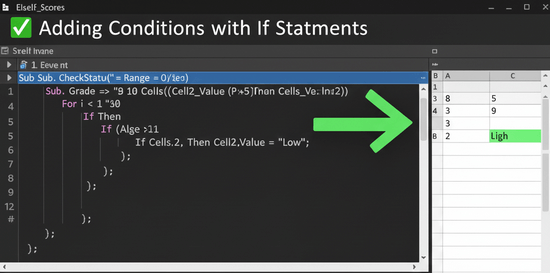
The real power of loops comes when you add conditions using If, ElseIf, and Else.
・Basic Example
Sub ForNextWithIf()
Dim i As Long
For i = 1 To 10
If Cells(i, 1).Value > 50 Then
Cells(i, 2).Value = "Pass"
Else
Cells(i, 2).Value = "Fail"
End If
Next i
End Sub
✅ If column A’s value is greater than 50, mark “Pass” in column B; otherwise, “Fail.”
✅ This is the foundation for condition-based looping.
✅ Combining Multiple Conditions (AND / OR)
You can combine multiple conditions using logical operators:
And→ All conditions must be TrueOr→ At least one condition must be TrueNot→ Negates a condition
・Example: Using And
Sub ForNextWithAnd()
Dim i As Long
For i = 1 To 20
If Cells(i, 1).Value > 50 And Cells(i, 2).Value <> "" Then
Cells(i, 3).Value = "Qualified"
End If
Next i
End Sub
✅ This executes only when both conditions are met:
- The value in column A > 50
- The corresponding cell in column B is not blank
・Example: Using Or
Sub ForNextWithOr()
Dim i As Long
For i = 1 To 20
If Cells(i, 1).Value = "A" Or Cells(i, 1).Value = "B" Then
Cells(i, 2).Value = "Category 1"
End If
Next i
End Sub
✅ Executes if the value in column A is either “A” or “B.”
・Example: Using Not
Sub ForNextWithNot()
Dim i As Long
For i = 1 To 20
If Not IsEmpty(Cells(i, 1).Value) Then
Cells(i, 2).Value = "Filled"
End If
Next i
End Sub
✅ Checks that a cell is not empty before proceeding.
✅ Handling Complex Conditions
When conditions become complex, you can combine multiple logical operators.
・Example: Multiple AND and OR
Sub ForNextComplexConditions()
Dim i As Long
For i = 1 To 30
If (Cells(i, 1).Value = "A" Or Cells(i, 1).Value = "B") _
And Cells(i, 2).Value > 100 Then
Cells(i, 3).Value = "High Value"
End If
Next i
End Sub
✅ Evaluates both letter categories and numeric thresholds simultaneously.
✅ Parentheses clarify evaluation order and prevent logical errors.
How to Combine AND and OR Conditions in IF Statements in Excel VBA
✅ Using ElseIf for Multi-Condition Branching
Sometimes, you want to check multiple exclusive conditions in sequence.
The ElseIf structure makes your code more organized and readable.
・Example: Multi-level Condition in Loop
Sub ForNextElseIf()
Dim i As Long
For i = 1 To 10
If Cells(i, 1).Value >= 80 Then
Cells(i, 2).Value = "A"
ElseIf Cells(i, 1).Value >= 60 Then
Cells(i, 2).Value = "B"
Else
Cells(i, 2).Value = "C"
End If
Next i
End Sub
✅ Assigns grades based on scores dynamically.
✅ A typical structure in report automation and KPI dashboards.
✅ Using Nested If Inside a For Loop

When conditions depend on multiple columns or parameters, nested If statements can help.
・Example: Nested Logic
Sub ForNextNestedIf()
Dim i As Long
For i = 1 To 10
If Cells(i, 1).Value >= 70 Then
If Cells(i, 2).Value = "Passed" Then
Cells(i, 3).Value = "Eligible"
Else
Cells(i, 3).Value = "Pending"
End If
End If
Next i
End Sub
✅ The first If filters rows, and the inner If applies further checks.
✅ Common in validation or approval workflows.
✅ Example: For…Next with Multiple Criteria Filters
In business automation, you often need to apply multiple filter conditions in a single loop.
・Example: Employee Salary and Department Filter
Sub ForNextMultipleCriteria()
Dim i As Long
For i = 2 To 100
If Cells(i, 2).Value = "Sales" And Cells(i, 3).Value >= 5000 Then
Cells(i, 4).Value = "Bonus Eligible"
ElseIf Cells(i, 2).Value = "HR" And Cells(i, 3).Value >= 4000 Then
Cells(i, 4).Value = "Eligible"
Else
Cells(i, 4).Value = "Not Eligible"
End If
Next i
End Sub
✅ Handles department-based conditions cleanly.
✅ Reduces repetitive code and logic duplication.
✅ Using Multiple If Statements Within One Loop (Parallel Logic)
Sometimes, you want to execute separate conditions independently within the same loop.
・Example
Sub ForNextParallelIf()
Dim i As Long
For i = 1 To 10
If Cells(i, 1).Value > 100 Then Cells(i, 2).Value = "High"
If Cells(i, 3).Value < 50 Then Cells(i, 4).Value = "Low"
Next i
End Sub
✅ Executes both checks separately — useful when actions aren’t mutually exclusive.
Understanding Nested For Loops in VBA
✅ Handling Multiple Columns or Ranges
You can extend For Next to check across multiple columns dynamically.
・Example: Comparing Adjacent Columns
Sub CompareColumns()
Dim i As Long
For i = 2 To 100
If Cells(i, 1).Value <> Cells(i, 2).Value Then
Cells(i, 3).Value = "Mismatch"
End If
Next i
End Sub
✅ Quickly detects mismatches between two columns.
✅ Ideal for reconciliation, data cleaning, and QA checks.
✅ Using For…Next with Arrays for Multiple Condition Logic
Processing large datasets directly from cells can slow down macros.
Instead, load data into arrays, perform logic in memory, and write results back efficiently.
・Example: Array-Based For Loop with Conditions
Sub ForNextArrayExample()
Dim data As Variant
Dim result() As String
Dim i As Long
data = Range("A2:A100").Value
ReDim result(1 To UBound(data))
For i = 1 To UBound(data)
If data(i, 1) = "A" Or data(i, 1) = "B" Then
result(i) = "Group 1"
ElseIf data(i, 1) = "C" Then
result(i) = "Group 2"
Else
result(i) = "Other"
End If
Next i
Range("B2").Resize(UBound(result), 1).Value = Application.Transpose(result)
End Sub
✅ Fast, memory-efficient, and ideal for large-scale automation.
✅ Array-based processing avoids constant Excel I/O operations.
✅ Skipping Certain Conditions Using Continue-Like Behavior
VBA doesn’t have a Continue For statement, but you can simulate it with logic.
・Example
Sub SkipConditionExample()
Dim i As Long
For i = 1 To 10
If Cells(i, 1).Value = "" Then GoTo SkipNext
Cells(i, 2).Value = Cells(i, 1).Value * 2
SkipNext:
Next i
End Sub
✅ Skips processing empty cells and moves directly to the next iteration.
✅ Alternative approach for condition-based skipping.
✅ Breaking Out Early with Exit For
When certain conditions are met, you can stop the entire loop immediately using Exit For.
・Example
Sub ExitForExample()
Dim i As Long
For i = 1 To 100
If Cells(i, 1).Value = "End" Then Exit For
Debug.Print i
Next i
End Sub
✅ Ends the loop instantly when “End” appears — improves efficiency.
✅ Useful for early termination in searches or validations.
✅ Example: Practical Business Scenario
Let’s combine everything into a real-world use case — checking orders and applying multiple conditions.
・Example: Order Validation
Sub OrderCheck()
Dim i As Long
For i = 2 To 200
If Cells(i, 2).Value = "Completed" And Cells(i, 3).Value >= 1000 Then
Cells(i, 5).Value = "VIP Order"
ElseIf Cells(i, 2).Value = "Pending" And Cells(i, 4).Value < Date Then
Cells(i, 5).Value = "Overdue"
Else
Cells(i, 5).Value = "Normal"
End If
Next i
End Sub
✅ Evaluates multiple logical conditions simultaneously.
✅ Helps automatically classify orders by status, value, and due date.
✅ Debugging Multi-Condition Loops
When conditions get complicated, debugging becomes crucial.
Here are a few practical tips:
✔ Use Debug.Print inside your loop to trace logic.
✔ Add parentheses to clarify And / Or order.
✔ Use indentation for readability.
✔ Test smaller datasets before scaling up.
Example:
If (x > 10 And y < 5) Or z = 1 Then Debug.Print "Condition Met"
✅ Parentheses ensure correct evaluation order.
✅ Performance Optimization Tips
| Technique | Description | Impact |
|---|---|---|
| Disable ScreenUpdating | Prevents flickering | ⚡ Major speed boost |
| Disable Automatic Calculation | Avoids unnecessary recalculation | ⚡ Significant |
| Use Arrays | Reduce worksheet I/O | ⚡ Excellent for large loops |
| Avoid Unnecessary Nested Loops | Simplify logic with dictionaries or filters | ✅ Cleaner |
| Exit Early | Stop processing once results found | ✅ Efficient |
Example:
Application.ScreenUpdating = False
Application.Calculation = xlCalculationManual
' Loop here
Application.ScreenUpdating = True
Application.Calculation = xlCalculationAutomatic
✅ Best Practices for For Next × If Logic
| Best Practice | Why It Matters |
|---|---|
| Use clear variable names | Improves readability |
| Indent nested conditions | Helps prevent logic mistakes |
| Limit nesting depth | Keep loops manageable |
Use ElseIf for exclusive conditions | Cleaner than multiple Ifs |
| Add comments for complex conditions | Aids future maintenance |
| Combine with arrays when looping large data | Improves performance |
✅ Following these patterns ensures that your code remains professional, scalable, and easy to debug.
✅ Summary:Mastering Multi-Condition Processing in For Next Loops
For…Nextloops can handle multiple conditions usingIf,ElseIf, and logical operators.- Combine
And,Or, andNotto create flexible rules. - Use nested
Ifor flags for complex business logic. - Optimize performance with arrays, early exits, and screen updating control.
- Always keep your loop readable and predictable.
By mastering multi-condition logic in For Next loops, you’ll be able to create Excel VBA scripts that are both powerful and efficient — capable of automating real-world business processes cleanly and reliably.