
Using ElseIf in IF Statements for Multiple Conditions in Excel VBA
Contents
- Using ElseIf in IF Statements for Multiple Conditions in Excel VBA
- ✅ Understanding the Role of ElseIf in VBA
- ✅ When and Why to Use ElseIf Instead of Nested IFs
- ✅ Building Multi-Condition Logic with ElseIf
- ✅ Understanding Evaluation Flow in ElseIf Chains
- ✅ Combining Multiple Conditions with AND and OR
- ✅ Avoiding Overlapping Conditions
- ✅ Using ElseIf with Ranges and Intervals
- ✅ Using ElseIf in Business Logic (Status Evaluation)
- ✅ Handling Multiple Fields with ElseIf
- ✅ Using ElseIf with Variables for Better Performance
- ✅ Nesting ElseIf for Tiered Logic
- ✅ Handling Text vs Numeric Conditions in ElseIf
- ✅ Combining ElseIf with Boolean Flags
- ✅ Avoiding Repeated Conditions Using Select Case (When Appropriate)
- ✅ Practical Example: Invoice Approval Logic
- ✅ Debugging Complex ElseIf Logic
- ✅ Improving Readability with Indentation and Comments
- ✅ Performance Considerations
- ✅ Full Example — Multi-Condition Workflow with ElseIf
- ✅ Common Mistakes When Using ElseIf
- ✅ Summary: Mastering ElseIf for Multiple Conditions in VBA
Conditional logic is the backbone of programming — and in Excel VBA, the If statement is one of the most powerful tools for controlling how your macro behaves. However, real-world business workflows rarely involve a single condition. Instead, they often depend on multiple decision paths, such as verifying several cell values, checking for multiple statuses, or processing data differently based on a variety of criteria.
This is where the ElseIf statement becomes essential. It allows you to build multi-branch logic — letting your VBA code make structured decisions step by step, without unnecessary nesting or repetition.
In this article, we’ll explore how to use ElseIf in IF statements to handle multiple conditions effectively. You’ll learn when to use ElseIf, how to structure your conditions for readability and speed, and how to build professional macros that adapt to real data scenarios.
By the end, you’ll not only understand the syntax but also master how to apply ElseIf for complex decision-making, error prevention, and performance optimization in Excel VBA.
✅ Understanding the Role of ElseIf in VBA
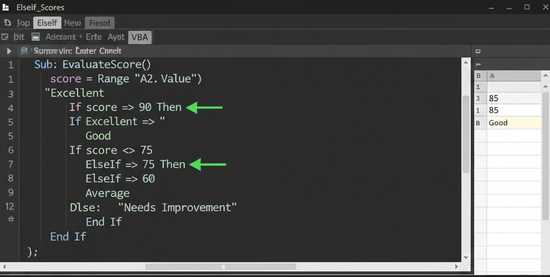
The If...ElseIf...Else structure is VBA’s way of handling multiple mutually exclusive conditions. It allows your program to test a series of possibilities, one after another, until one evaluates as True.
Here’s the general structure:
If condition1 Then
' Code to execute if condition1 is True
ElseIf condition2 Then
' Code to execute if condition2 is True
ElseIf condition3 Then
' Code to execute if condition3 is True
Else
' Code to execute if none of the above conditions are True
End If
VBA checks the conditions from top to bottom, executing only the first one that is true. Once a true condition is found, all remaining ones are ignored.
✅ This makes ElseIf perfect for handling multiple distinct possibilities efficiently.
✅ When and Why to Use ElseIf Instead of Nested IFs
In VBA, it’s technically possible to nest multiple If statements inside each other. However, this quickly becomes difficult to read and maintain.
・Example: Nested IF (Less Readable)
If Range("A1").Value = "High" Then
MsgBox "Level 1"
Else
If Range("A1").Value = "Medium" Then
MsgBox "Level 2"
Else
If Range("A1").Value = "Low" Then
MsgBox "Level 3"
End If
End If
End If
✅ This works, but it’s cluttered and visually confusing.
・Example: ElseIf (Clean and Efficient)
If Range("A1").Value = "High" Then
MsgBox "Level 1"
ElseIf Range("A1").Value = "Medium" Then
MsgBox "Level 2"
ElseIf Range("A1").Value = "Low" Then
MsgBox "Level 3"
Else
MsgBox "Unknown level"
End If
✅ ElseIf removes unnecessary nesting, making logic straightforward and easy to follow.
Using ElseIf in IF Statements for Multiple Conditions in Excel VBA
✅ Building Multi-Condition Logic with ElseIf
When multiple conditions must be tested in sequence, ElseIf allows VBA to progress through them cleanly.
・Basic Example: Multiple Status Checks
If Range("A1").Value = "Pending" Then
MsgBox "Processing will start soon."
ElseIf Range("A1").Value = "Active" Then
MsgBox "Process is ongoing."
ElseIf Range("A1").Value = "Complete" Then
MsgBox "Process finished successfully."
Else
MsgBox "Unknown status."
End If
✅ Each ElseIf represents a separate logic path, giving full control over multiple outcomes.
✅ Understanding Evaluation Flow in ElseIf Chains
When VBA encounters an If statement with multiple ElseIfs:
- It evaluates the first condition.
- If
True, it executes that block and skips the rest. - If
False, it checks the next ElseIf, and so on.
This means:
- Only one block runs per evaluation.
- The order of conditions matters.
- Performance improves if the most likely conditions appear first.
✅ Combining Multiple Conditions with AND and OR
You can also combine multiple conditions inside each If or ElseIf statement. Parentheses help clarify evaluation order.
If Range("A1").Value = "Active" And Range("B1").Value > 0 Then
MsgBox "Active with positive balance."
ElseIf Range("A1").Value = "Inactive" Or Range("C1").Value = "Closed" Then
MsgBox "Not active or closed account."
Else
MsgBox "No matching criteria."
End If
✅ Use And for conditions that must both be true, and Or for conditions where either is enough.
How to Combine AND and OR Conditions in IF Statements in Excel VBA
✅ Avoiding Overlapping Conditions
One common mistake in ElseIf chains is creating conditions that overlap — meaning more than one could technically be true.
Because VBA stops after the first true condition, later branches will never run.
・Example of Overlap
If score >= 50 Then
MsgBox "Passed"
ElseIf score >= 80 Then
MsgBox "Excellent"
End If
✅ The second condition will never run, because 80 also satisfies score >= 50.
・Correct Order
If score >= 80 Then
MsgBox "Excellent"
ElseIf score >= 50 Then
MsgBox "Passed"
Else
MsgBox "Failed"
End If
✅ Always place the most restrictive or highest-priority condition first.
✅ Using ElseIf with Ranges and Intervals
Many Excel automation tasks involve checking numeric ranges, such as scores, prices, or stock levels. ElseIf helps structure this cleanly.
If Range("A1").Value < 50 Then
MsgBox "Low"
ElseIf Range("A1").Value >= 50 And Range("A1").Value < 80 Then
MsgBox "Medium"
ElseIf Range("A1").Value >= 80 Then
MsgBox "High"
End If
✅ Clear, readable, and easy to expand with additional conditions later.
✅ Using ElseIf in Business Logic (Status Evaluation)
In workflow automation, ElseIf is often used to interpret different text-based statuses in Excel.
If status = "Requested" Then
MsgBox "Waiting for approval"
ElseIf status = "Approved" Then
MsgBox "Ready for processing"
ElseIf status = "Rejected" Then
MsgBox "Approval denied"
Else
MsgBox "Status unknown"
End If
✅ Each branch performs a different business rule, depending on the workflow stage.
✅ Handling Multiple Fields with ElseIf
In real-world data, decisions often depend on more than one column.
If (Cells(2, 1).Value = "Gold" And Cells(2, 2).Value >= 1000) Then
MsgBox "Premium Member"
ElseIf (Cells(2, 1).Value = "Silver" And Cells(2, 2).Value >= 500) Then
MsgBox "Regular Member"
ElseIf (Cells(2, 1).Value = "Bronze") Then
MsgBox "Basic Member"
Else
MsgBox "Not classified"
End If
✅ ElseIf can handle complex multi-field logic while keeping structure readable.
✅ Using ElseIf with Variables for Better Performance
Instead of repeating cell references, use variables for cleaner and faster code.
Dim category As String
category = Range("A1").Value
If category = "Fruit" Then
MsgBox "Category: Food"
ElseIf category = "Computer" Then
MsgBox "Category: Electronics"
ElseIf category = "Book" Then
MsgBox "Category: Media"
Else
MsgBox "Category not recognized"
End If
✅ This approach reduces repeated cell lookups, improving macro efficiency.
✅ Nesting ElseIf for Tiered Logic
Sometimes, you’ll need conditional branching within another ElseIf.
If Range("A1").Value = "Active" Then
MsgBox "Processing active"
ElseIf Range("A1").Value = "Pending" Then
If Range("B1").Value > 100 Then
MsgBox "Pending high priority"
Else
MsgBox "Pending normal"
End If
ElseIf Range("A1").Value = "Closed" Then
MsgBox "Process ended"
End If
✅ Nested ElseIf allows sub-categories of logic, but keep it minimal to maintain clarity.
✅ Handling Text vs Numeric Conditions in ElseIf
VBA differentiates between text and numeric conditions.
Text comparisons should always be enclosed in quotation marks and are case-insensitive by default.
If Range("A1").Value = "yes" Then
MsgBox "Accepted"
ElseIf Range("A1").Value = "no" Then
MsgBox "Declined"
Else
MsgBox "Unspecified"
End If
✅ Use the Option Compare Text statement if you need case-insensitive matching across all conditions.
✅ Combining ElseIf with Boolean Flags
For more complex logic, use Boolean variables as flags to simplify multiple conditions.
Dim isValid As Boolean
isValid = (Range("A1").Value <> "" And Range("B1").Value > 0)
If isValid Then
MsgBox "Record is valid"
ElseIf Range("A1").Value = "" Then
MsgBox "Missing data"
Else
MsgBox "Invalid entry"
End If
✅ A mix of variables and ElseIf conditions makes complex validation easier to manage.
✅ Avoiding Repeated Conditions Using Select Case (When Appropriate)
While ElseIf is powerful, if you have many equal comparisons for a single variable, Select Case is often cleaner.
Select Case Range("A1").Value
Case "Red": MsgBox "Stop"
Case "Yellow": MsgBox "Caution"
Case "Green": MsgBox "Go"
Case Else: MsgBox "Invalid color"
End Select
✅ Still, ElseIf remains preferable when evaluating different variables or numeric ranges.
✅ Practical Example: Invoice Approval Logic
Here’s how ElseIf handles multi-stage business rules.
Sub ApproveInvoice()
Dim amount As Double
amount = Range("B2").Value
If amount < 1000 Then
MsgBox "Auto-approved"
ElseIf amount >= 1000 And amount < 5000 Then
MsgBox "Manager approval required"
ElseIf amount >= 5000 And amount < 10000 Then
MsgBox "Director approval required"
Else
MsgBox "Executive review required"
End If
End Sub
✅ A realistic decision chain with multiple thresholds, ideal for corporate workflows.
✅ Debugging Complex ElseIf Logic
When multiple ElseIf conditions produce unexpected results:
- Use
Debug.Printto trace which branch executes. - Double-check for overlapping ranges or missing parentheses.
- Add temporary message boxes or breakpoints.
If value < 0 Then
Debug.Print "Negative"
ElseIf value = 0 Then
Debug.Print "Zero"
ElseIf value > 0 Then
Debug.Print "Positive"
End If
✅ Debug.Print outputs to the Immediate Window — useful for troubleshooting large macros.
✅ Improving Readability with Indentation and Comments
Long ElseIf chains can be difficult to read. Use indentation and comments to clarify intent.
If status = "Pending" Then
' Awaiting confirmation
ElseIf status = "In Progress" Then
' Currently processing
ElseIf status = "Complete" Then
' Finished successfully
Else
' Invalid or undefined
End If
✅ Clear, consistent formatting improves maintenance and team collaboration.
✅ Performance Considerations
| Technique | Description |
|---|---|
| Order conditions logically | Place most likely conditions first |
| Use variables | Reduce repeated Range lookups |
| Minimize nested ElseIfs | Flatten structure when possible |
| Test with Debug.Print | Validate flow efficiently |
✅ Thoughtful structuring can reduce processing time in large datasets.
✅ Full Example — Multi-Condition Workflow with ElseIf
Below is a complete macro combining multiple ElseIf conditions and different data types.
Sub WorkflowController()
Dim taskStatus As String
Dim priority As String
Dim dueDate As Date
taskStatus = Range("A2").Value
priority = Range("B2").Value
dueDate = Range("C2").Value
If taskStatus = "Completed" Then
MsgBox "No further action required."
ElseIf taskStatus = "Pending" And priority = "High" Then
MsgBox "Urgent: Process immediately."
ElseIf taskStatus = "Pending" And priority = "Low" Then
MsgBox "Monitor and process later."
ElseIf taskStatus = "In Progress" Then
If dueDate < Date Then
MsgBox "Overdue task!"
Else
MsgBox "Task is on schedule."
End If
Else
MsgBox "Status not recognized."
End If
End Sub
✅ Combines ElseIf branching, variable checks, and date logic — a professional, real-world implementation.
✅ Common Mistakes When Using ElseIf
| Mistake | Description | Solution |
|---|---|---|
| Overlapping ranges | Conditions evaluated in wrong order | Place stricter checks first |
| Missing Else | No fallback for unmatched data | Add default Else |
| Poor indentation | Hard to maintain | Use clear spacing |
| Excessive ElseIfs | Hard to follow logic | Consider Select Case |
| Logical grouping issues | Misread “And/Or” conditions | Use parentheses |
✅ Avoiding these ensures reliability in complex automation scenarios.
✅ Summary: Mastering ElseIf for Multiple Conditions in VBA
| Concept | Description |
|---|---|
| Purpose | Handle multiple possible outcomes without deep nesting |
| Evaluation | Runs top to bottom, stops at first True |
| Best Use | When testing related but exclusive conditions |
| Key Tips | Use parentheses, comment logic, and order efficiently |
| Alternative | Use Select Case for single-variable comparisons |
Key Takeaways:
ElseIfstreamlines complex logic by preventing unnecessary nestedIfblocks.- Always order conditions from most specific to least specific.
- Combine
And,Or, and parentheses for nuanced logic control. - Comment generously to document decision paths.
- ElseIf is an essential tool for creating intelligent, human-readable automation flows in Excel VBA.
By mastering ElseIf for multiple conditions, you transform your macros into adaptable decision-making systems — capable of handling everything from basic validation to enterprise-grade process automation with clarity and precision.