
When building Excel VBA macros, loops like the For statement are among the most essential tools.
They allow repetitive actions — processing rows, checking conditions, copying data — all automatically.
But what if you need to stop the loop early?
Perhaps you found the target value, hit a blank cell, or encountered an error that makes further looping unnecessary.
That’s where exiting a For loop becomes critical.
In this comprehensive guide, you’ll learn every way to break out of a For loop in VBA, understand how it behaves internally, and see practical business examples where this technique saves time and improves performance.
✅ What Is the “For” Statement in VBA?
Contents
- ✅ What Is the “For” Statement in VBA?
- ✅ The “Exit For” Statement: The Correct Way to Leave a Loop
- ✅ Real-World Example: Stop When a Blank Cell Is Found
- ✅ Using “Exit For” to Stop After Finding a Specific Value
- ✅ “Exit For” vs “Exit Do” — Know the Difference
- ✅ Nested Loops: Exiting the Inner vs Outer Loop
- ✅ Using “Exit For” with Conditional Logic
- ✅ Combining “Exit For” with Error Handling
- ✅ “Exit For” vs “GoTo” — Which Should You Use?
- ✅ Example: Searching Across Columns and Exiting When Found
- ✅ “Exit For” with Dynamic Data Ranges
- ✅ Exiting Loops Inside Functions and Subroutines
- ✅ Performance Optimization with “Exit For”
- ✅ Best Practices When Using “Exit For”
- ✅ Debugging and Verification
- ✅ Common Mistakes and Fixes
- ✅ Practical Business Use Cases
- ✅ Summary:Mastering “Exit For” for Clean and Efficient VBA Automation
・Basic concept
A For loop repeats a block of code a specific number of times — typically using a counter variable.
Here’s a basic example:
Sub SimpleForLoop()
Dim i As Integer
For i = 1 To 10
Debug.Print i
Next i
End Sub
This will print numbers 1 through 10 in the Immediate Window.
But what if you only want to go up to 5 and then stop?
Let’s see how to break the loop properly.
✅ The “Exit For” Statement: The Correct Way to Leave a Loop
・Syntax
Exit For
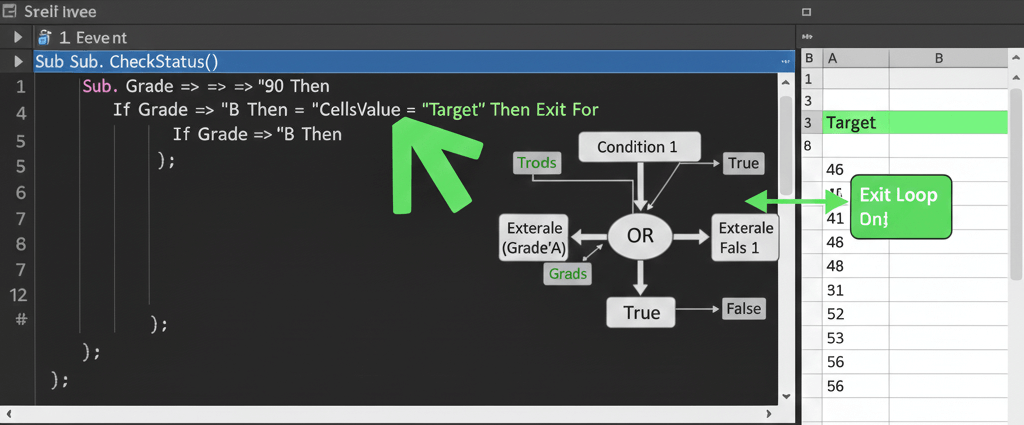
The Exit For statement immediately terminates the current loop, skipping all remaining iterations, and continues executing code after the Next statement.
・Example: Exit when a condition is met
Sub ExitExample()
Dim i As Integer
For i = 1 To 10
If i = 5 Then Exit For
Debug.Print "Current number: " & i
Next i
Debug.Print "Loop ended."
End Sub
✅ Output:
Current number: 1
Current number: 2
Current number: 3
Current number: 4
Loop ended.
Once i = 5, the Exit For line stops the loop immediately.
✅ Real-World Example: Stop When a Blank Cell Is Found
This scenario happens constantly in Excel — processing data until you reach an empty row.
Sub StopAtBlankCell()
Dim i As Long
For i = 1 To 1000
If Cells(i, 1).Value = "" Then Exit For
Debug.Print "Row " & i & ": " & Cells(i, 1).Value
Next i
MsgBox "Stopped at row " & i
End Sub
✅ Explanation:
- The loop runs from row 1 to 1000
- When it finds the first blank in column A, it exits immediately
- Saves unnecessary processing and prevents errors
Perfect for dynamic datasets that grow or shrink daily.
Why Loop Until a Blank Row in VBA?
✅ Using “Exit For” to Stop After Finding a Specific Value
When searching for a particular item, you often don’t want to keep looping once it’s found.
Sub FindTargetValue()
Dim i As Long
Dim target As String
target = "Complete"
For i = 1 To 100
If Cells(i, 2).Value = target Then
MsgBox "Found '" & target & "' in row " & i
Exit For
End If
Next i
End Sub
✅ Once “Complete” is found, the loop ends immediately.
✅ Prevents scanning unnecessary rows and speeds up execution.
✅ “Exit For” vs “Exit Do” — Know the Difference
Many beginners confuse the two, but they are used in different loop types:
| Loop Type | Exit Keyword | Example |
|---|---|---|
For…Next | Exit For | Used in counting loops |
Do…Loop | Exit Do | Used in condition-based loops |
✅ Always use Exit For when dealing with numeric counters.
✅ Using the wrong keyword will cause a compile error.
✅ Nested Loops: Exiting the Inner vs Outer Loop
・Exiting only the inner loop
Sub NestedLoopExitInner()
Dim i As Integer, j As Integer
For i = 1 To 3
For j = 1 To 5
If j = 3 Then Exit For
Debug.Print "i=" & i & ", j=" & j
Next j
Next i
End Sub
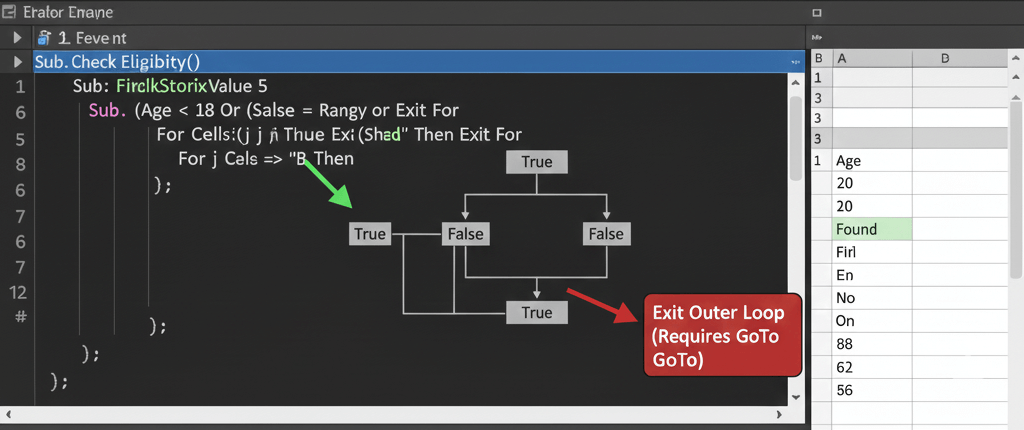
✅ Exit For stops only the inner loop, and execution continues with the next iteration of the outer loop.
・How to exit both loops
VBA doesn’t support “multi-level exits,” so you need a workaround — using a flag variable or a GoTo label.
Example with flag:
Sub ExitBothLoops()
Dim i As Integer, j As Integer
Dim stopAll As Boolean
For i = 1 To 3
For j = 1 To 5
If j = 3 Then
stopAll = True
Exit For
End If
Debug.Print "i=" & i & ", j=" & j
Next j
If stopAll Then Exit For
Next i
End Sub
✅ Once j = 3, both loops stop immediately.
✅ Controlled, readable, and commonly used in business macros.
【VBA】Understanding the Basics of the For…Next Loop
✅ Using “Exit For” with Conditional Logic
You can mix multiple conditions to decide when to stop.
Sub ExitForMultipleConditions()
Dim i As Long
For i = 1 To 50
If Cells(i, 1).Value = "" Or Cells(i, 2).Value = "End" Then Exit For
Debug.Print "Processing Row: " & i
Next i
End Sub
✅ Stops either at a blank cell or when “End” is found.
✅ Ideal for flexible automation rules.
✅ Combining “Exit For” with Error Handling
When processing data, errors can occur — for example, trying to divide by zero or accessing an invalid cell.
You can combine error handling and “Exit For” for safety.
Sub ExitForWithErrorHandling()
Dim i As Long
On Error GoTo ErrorHandler
For i = 1 To 100
If Cells(i, 1).Value = "" Then Exit For
Cells(i, 2).Value = 100 / Cells(i, 1).Value
Next i
Exit Sub
ErrorHandler:
MsgBox "Error occurred at row " & i
End Sub
✅ Exits gracefully on errors or blanks.
✅ Prevents Excel from freezing on unexpected values.
✅ “Exit For” vs “GoTo” — Which Should You Use?
While both can exit loops, they serve different purposes:
| Feature | Exit For | GoTo |
|---|---|---|
| Exits loop only | ✅ Yes | ❌ No, jumps anywhere |
| Clean and structured | ✅ | ⚠️ Can be messy |
| Recommended in best practices | ✅ | Only for error handling |
✅ Always prefer Exit For for clarity and structure.
✅ Reserve GoTo for exceptional flow control or error handling only.
✅ Example: Searching Across Columns and Exiting When Found
Sub SearchAcrossColumns()
Dim i As Long, j As Long
Dim target As String
target = "Approved"
For i = 1 To 50
For j = 1 To 5
If Cells(i, j).Value = target Then
MsgBox "Found '" & target & "' at Row " & i & ", Column " & j
Exit For
End If
Next j
Next i
End Sub
✅ Stops scanning once the value is found.
✅ Great for multi-column data checks (status, category, etc.).
✅ “Exit For” with Dynamic Data Ranges
Instead of looping over fixed numbers, use .End(xlUp) to dynamically find the last row.
Sub ExitDynamicData()
Dim i As Long, lastRow As Long
lastRow = Cells(Rows.Count, 1).End(xlUp).Row
For i = 1 To lastRow
If Cells(i, 1).Value = "Stop" Then Exit For
Debug.Print "Row " & i & ": " & Cells(i, 1).Value
Next i
End Sub
✅ Automatically adapts to datasets of varying length.
✅ Stops processing when a “Stop” marker is found.
✅ Exiting Loops Inside Functions and Subroutines
When using loops within larger structures, “Exit For” helps isolate logic without affecting the rest of your macro.
Function FindEmployee(ByVal name As String) As String
Dim i As Long
For i = 2 To 100
If Cells(i, 1).Value = name Then
FindEmployee = Cells(i, 2).Value
Exit For
End If
Next i
End Function
✅ The loop stops as soon as the employee is found.
✅ Keeps function execution clean and efficient.
✅ Performance Optimization with “Exit For”
Loops are often the heaviest part of VBA execution.
By exiting early, you can save processing time and make your macros feel instant.
Example:
- Instead of processing all 10,000 rows, stop at the 230th when a result is found.
- Reduces runtime from 2 seconds to under 0.1 seconds.
✅ “Exit For” is not just control logic — it’s a performance optimization tool.
✅ Best Practices When Using “Exit For”
✔ Always use Exit For instead of GoTo when breaking a loop.
✔ Use comments to explain why you exit early.
✔ Combine with clear condition checks.
✔ Avoid deep nesting by modularizing code.
✔ Always ensure variables are properly reset after the loop (especially flags).
Example of clean structure:
For i = 1 To 100
If FoundValue(Cells(i, 1).Value) Then
Debug.Print "Match found at row " & i
Exit For
End If
Next i
✅ Debugging and Verification
When your loop exits unexpectedly, use Debug.Print before and after the Exit For to confirm flow.
If i = 10 Then
Debug.Print "Exiting at i = " & i
Exit For
End If
✅ Quick, safe way to trace logic during macro development.
✅ Avoids unnecessary message boxes while debugging.
✅ Common Mistakes and Fixes
| Mistake | Description | Fix |
|---|---|---|
Forgot Exit For condition | Loop never stops | Add clear condition checks |
Used Exit Do instead | Compile error | Replace with Exit For |
| Needed to exit both loops | Only one stops | Use flag variable |
| Logic check after Exit | Code never runs | Move logic before Exit For |
| Infinite loops | Counter not incremented | Always check loop limits |
✅ Practical Business Use Cases
| Scenario | Purpose | Example |
|---|---|---|
| Stop scanning after first match | Efficiency | Searching product codes |
| End processing on blank rows | Dynamic dataset control | Sales or inventory data |
| Exit nested loops when condition met | Avoid redundant processing | Invoice validation |
| Break on error or invalid data | Error handling | Payroll or expense reports |
| Early exit for status check | Speed up process | Checking approval status |
In business macros, these small optimizations often separate amateur scripts from enterprise-level automation.
✅ Summary:Mastering “Exit For” for Clean and Efficient VBA Automation
Exit Foris the proper, reliable way to break out of loops.- Always use it for clear, condition-based exits.
- Combine it with error handling and performance tuning.
- Avoid
GoTounless absolutely necessary. - Use it in both simple and nested loops for flexible control.
By mastering how to exit a For loop, you’ll write cleaner, faster, and more professional VBA code — improving not just automation accuracy, but also maintainability and speed across all your Excel projects.