
⭐ VBA Syntax & Grammar: The Complete Guide to Writing Clean, Error-Free, and Efficient VBA Code
Contents
- ⭐ VBA Syntax & Grammar: The Complete Guide to Writing Clean, Error-Free, and Efficient VBA Code
- 1. Introduction: Why Syntax & Grammar Matter
- 2. Understanding VBA Modules and Code Structure
- 3. Variables: Declaration, Scope, Lifetime
- 4. Data Types
- 5. Using Option Explicit
- 6. Constants and Enums
- 7. Operators in VBA
- 8. Working with Objects, Properties, and Methods
- 9. Using With Blocks
- 10. Conditions: If, ElseIf, Else
- 11. Nested If Statements
- 12. Select Case for Multi-Condition Logic
- 13. Logical Operators (AND, OR, NOT)
- 14. Loops: For Next
- 15. Loops: For Each
- 16. Loops: Do While / Do Until
- 17. Exit For / Exit Do
- 18. Continue Pattern Using GoTo (Alternative)
- 19. Sub Procedures vs Function Procedures
- 20. Calling Subs and Functions
- 21. Writing Reusable Code with Parameters
- 22. Error Handling: Resume Next / GoTo
- 23. Using Err Object
- 24. InputBox and MsgBox
- 25. Working with Arrays
- 26. Dynamic Arrays and ReDim
- 27. Writing Clean, Readable Code
- 28. Comments and Documentation Practices
- 29. Debugging: Breakpoints, Immediate Window, Watches
- 30. Best Practices for Professional-Quality VBA
- 31. Recommended Internal Links
Syntax & Grammar is the foundation of all VBA programming.
Without understanding variables, control structures, loops, indentation rules, error handling, and modular code design, no macro can be stable or scalable.
This pillar article serves as the central hub for the Syntax & Grammar category, linking to related small-category articles such as:
- If Statement
- For Loop
- Active Ctrl
- Sheet Operations
- File Operations
- Copy & Paste
1. Introduction: Why Syntax & Grammar Matter
Syntax defines how VBA code must be written.
Grammar defines how statements, structures, and logic connect.
Together, they determine:
- whether your macro works
- whether your workbook crashes
- whether automation is reliable
- whether others can maintain your code
Professionally written VBA follows clear syntactic rules and clean grammar—this pillar covers everything you need.
2. Understanding VBA Modules and Code Structure
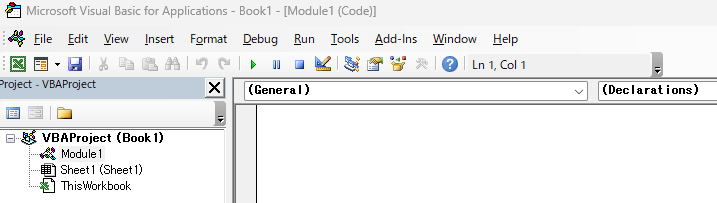
VBA projects contain:
- Modules (standard code)
- Class Modules
- UserForms
- Workbook & Worksheet code modules
A typical module structure:
Option Explicit
Sub MainProcess()
End Sub
Function CalcTotal()
End Function
3. Variables: Declaration, Scope, Lifetime
Declaring variables:
Dim i As Long
Dim name As String
Dim price As Double
Dim ws As Worksheet
Scope types:
- Procedure-level (inside Sub)
- Module-level (use
Private) - Project-level (use
Public)
Lifetime:
- procedure variables disappear after the sub ends
- module variables persist while workbook is open
4. Data Types
Essential types include:
| Type | Usage |
|---|---|
| String | text |
| Long | integers |
| Double | decimals |
| Boolean | True/False |
| Variant | anything (flexible but slow) |
| Object | Excel objects (Range, Workbook, etc.) |
Example:
Dim amount As Double
Dim isValid As Boolean
Dim arr As Variant
Dim rng As Range
5. Using Option Explicit
Always add this:
Option Explicit
Benefits:
- prevents missing variable declarations
- catches typos
- prevents silent errors
6. Constants and Enums
Constants:
Const TAX_RATE As Double = 0.1
Enums:
Enum Status
Pending = 0
Approved = 1
Rejected = 2
End Enum
Enums improve readability and maintainability.
7. Operators in VBA
Arithmetic:
+ - * / ^ Mod
Comparison:
= <> > < >= <=
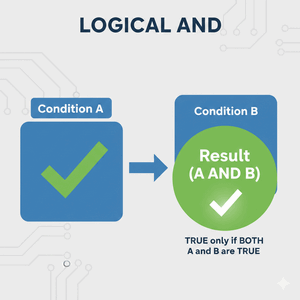
Logical:
And Or Not Xor
String:
&
Example:
fullName = firstName & " " & lastName
How to Combine AND and OR Conditions in IF Statements in Excel VBA
8. Working with Objects, Properties, and Methods
Example:
Set ws = Sheets("Data")
ws.Range("A1").Value = 100
Rules:
- Objects require Set
- Properties describe objects
- Methods perform actions
9. Using With Blocks
Avoids repeating object references:
With Range("A1:D1")
.Interior.Color = vbYellow
.Font.Bold = True
End With
10. Conditions: If, ElseIf, Else
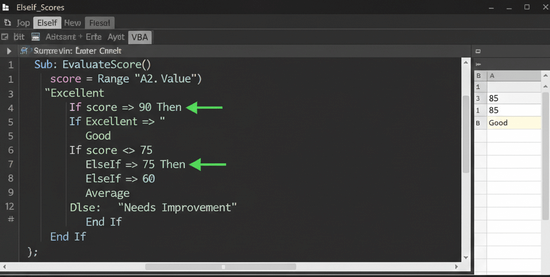
Example:
If score >= 80 Then
result = "A"
ElseIf score >= 70 Then
result = "B"
Else
result = "C"
End If
How to Use ElseIf in IF Statements to Do Nothing in Excel VBA
Using ElseIf in IF Statements for Multiple Conditions in Excel VBA
11. Nested If Statements
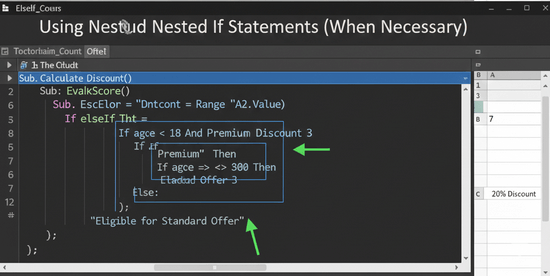
If age > 18 Then
If country = "US" Then
allowed = True
End If
End If
How to Use Multiple Conditions in VBA If Statements: Efficient Branching and Practical Applications
12. Select Case for Multi-Condition Logic
Better than many ElseIf blocks:
Select Case grade
Case "A"
msg = "Great"
Case "B"
msg = "Good"
Case "C"
msg = "OK"
Case Else
msg = "Check"
End Select
13. Logical Operators (AND, OR, NOT)
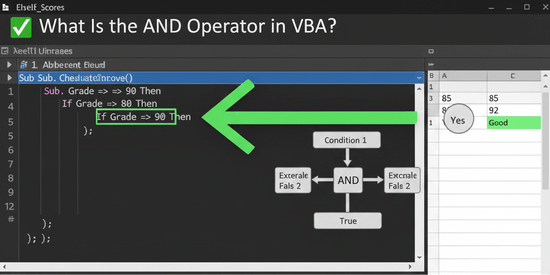
If score > 80 And passed = True Then
If country = "US" Or country = "UK" Then
How to Combine Three or More OR Conditions in IF Statements in Excel VBA
14. Loops: For Next
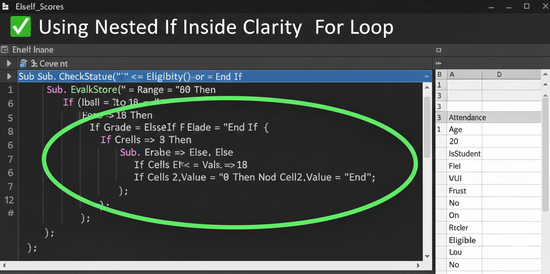
For i = 1 To 10
Cells(i,1).Value = i
Next i
【VBA】Understanding the Basics of the For…Next Loop
15. Loops: For Each
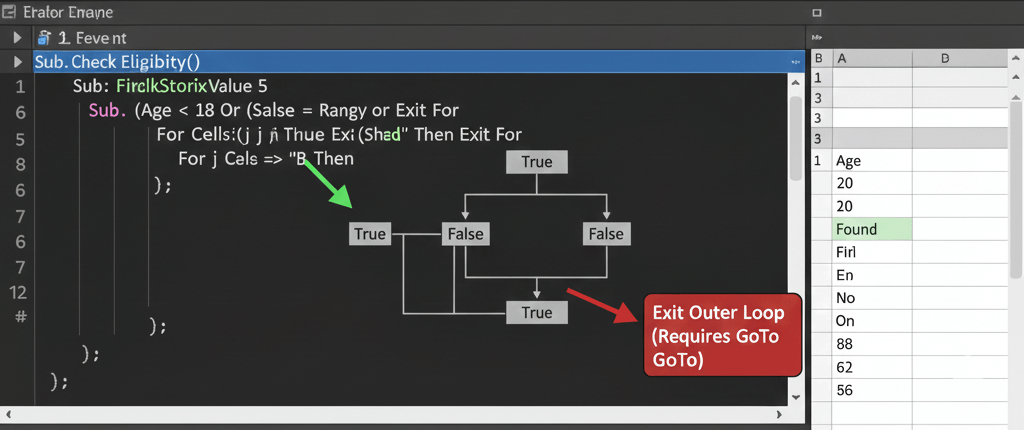
For Each ws In Worksheets
ws.Range("A1").Value = "Checked"
Next ws
What Is the “For” Statement in VBA?
16. Loops: Do While / Do Until
Do While i < 10
i = i + 1
Loop
Do Until Cells(i,1).Value = ""
i = i + 1
Loop
17. Exit For / Exit Do
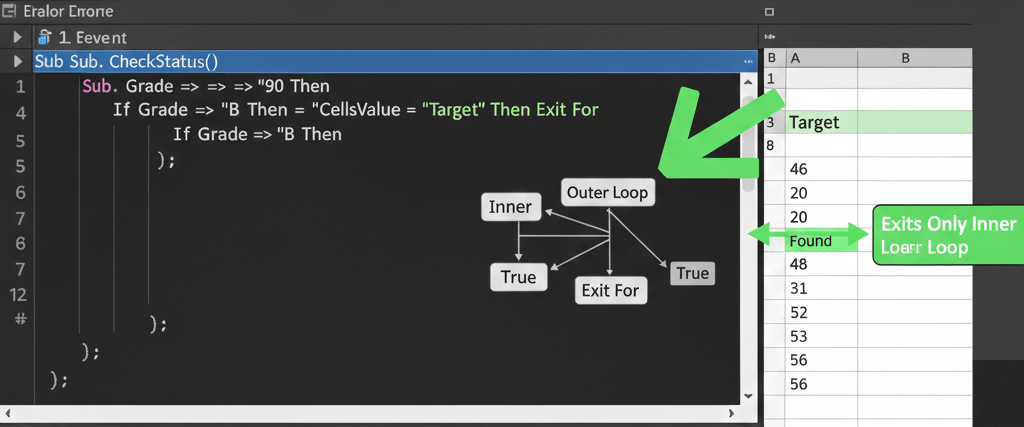
Use to break loops early.
If Cells(i,1).Value = "STOP" Then Exit For
18. Continue Pattern Using GoTo (Alternative)
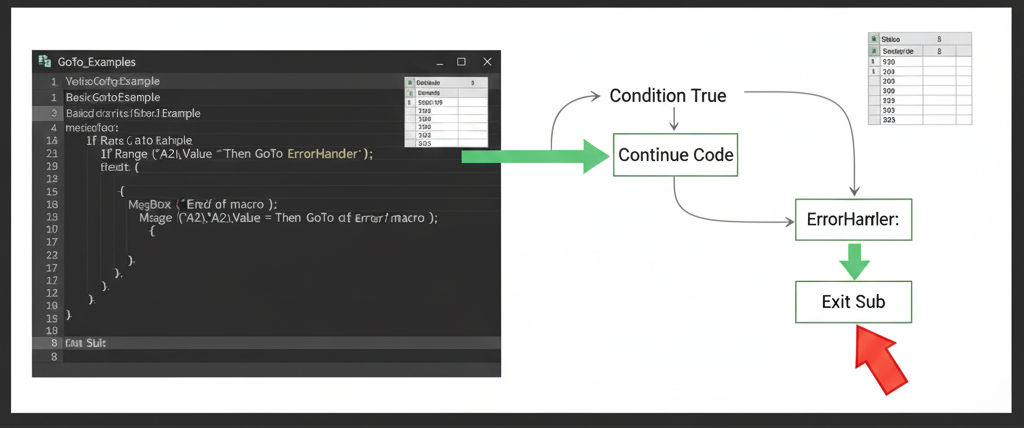
VBA lacks “Continue”, but you can do:
If Cells(i,1).Value = "" Then GoTo NextLoop
' processing here
NextLoop:
Next i
Understanding and Using the GoTo Statement in VBA: Complete Guide for Excel Automation
19. Sub Procedures vs Function Procedures
Sub (performs actions)
Sub SendReport()
Function (returns a value)
Function GetTax(amount As Double) As Double
20. Calling Subs and Functions
Call a Sub:
Call ProcessData
or simply:
ProcessData
Call a Function:
tax = GetTax(5000)
21. Writing Reusable Code with Parameters
Sub CopyData(src As Range, dest As Range)
dest.Value = src.Value
End Sub
22. Error Handling: Resume Next / GoTo
Basic:
On Error Resume Next
Structured:
On Error GoTo ErrHandler
' code...
Exit Sub
ErrHandler:
MsgBox Err.Description
23. Using Err Object
If Err.Number <> 0 Then
Debug.Print Err.Description
End If
24. InputBox and MsgBox
InputBox:
answer = InputBox("Enter your name")
MsgBox:
MsgBox "Completed!"
25. Working with Arrays
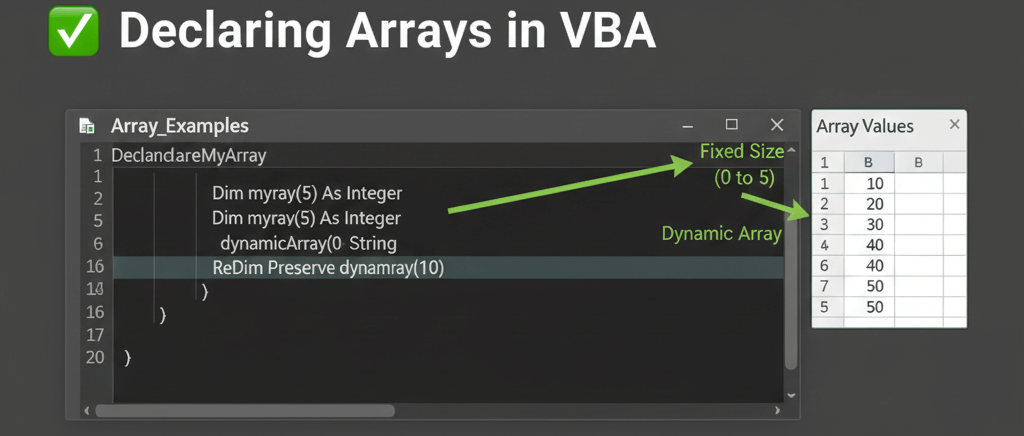
Declaraton:
Dim arr(1 To 10) As Long
Loading range into array:
arr = Range("A1:A10").Value
Why Use Arrays for Header-Based Data Transfer?
26. Dynamic Arrays and ReDim
ReDim arr(1 To 5)
ReDim Preserve arr(1 To 10)
27. Writing Clean, Readable Code
Principles:
- one action per line
- consistent indentation
- meaningful variable names
- no magic numbers
- avoid deeply nested logic
- add comments where needed
28. Comments and Documentation Practices
Use apostrophe ':
' Calculate new tax value
tax = price * 0.1
Documentation improves maintainability.
29. Debugging: Breakpoints, Immediate Window, Watches
Set breakpoint:
Click the left margin or press F9
Immediate Window:
? Range("A1").Value
Watches:
Track variables automatically.
30. Best Practices for Professional-Quality VBA
- Use Option Explicit
- Avoid Select / Activate
- Write modular code
- Use consistent naming
- Add meaningful comments
- Validate inputs
- Handle errors gracefully
- Use With blocks for clarity
- Test boundary conditions
- Document assumptions